Every frame that matters, none of the ones that don’t
Video frame capture for Windows
Turn hours of video into clean, ready-to-publish images. Capture evenly spaced snapshots from one video or a whole folder at the original resolution, let black and blank frames drop out by themselves, then save resized, watermarked pictures, an animated GIF and a contact sheet in one click. Everything runs on your own PC.
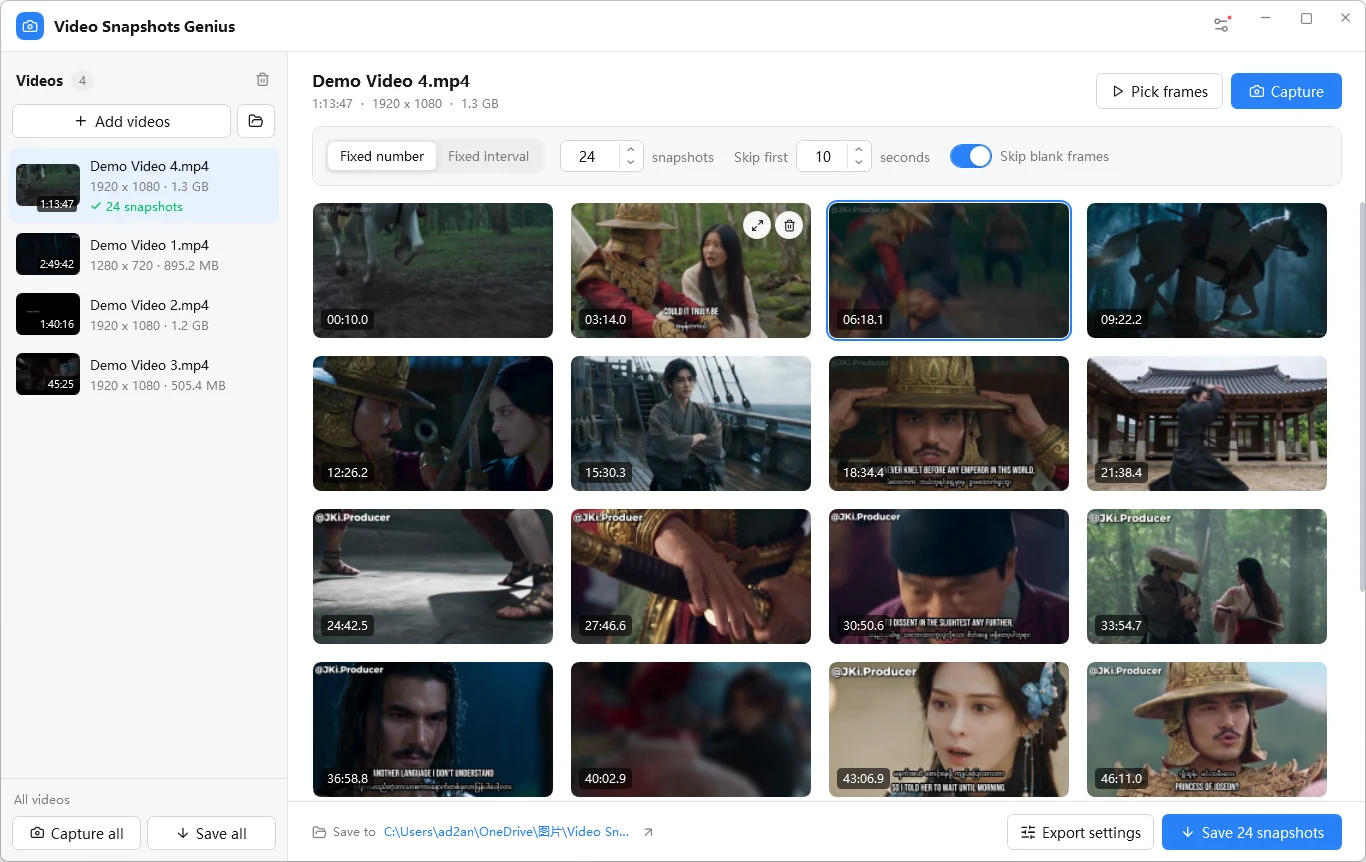
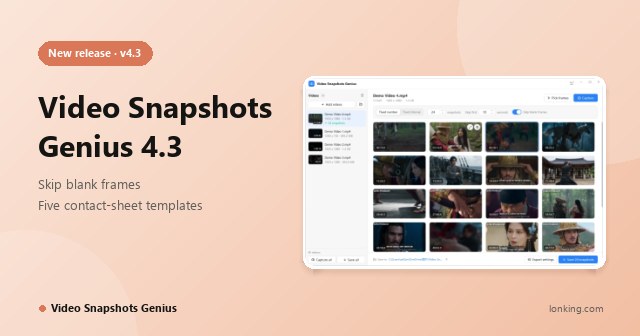
Add videos, press Capture, save: 24 evenly spaced snapshots with their times
Original resolution
Skips black frames
5 contact-sheet styles
On your PC, never uploaded
Source quality
Frames are decoded from the file at the original resolution, never from a player window
Blank frames out
Near-solid black, white and single-colour frames are dropped, and replaced when possible
Whole folders
Capture all and Save all, each video into its own sub-folder
GIF + contact sheet
An animated GIF and a contact sheet in five templates, built in
Video is easy to record, hard to reuse as pictures
Open a player, scrub, pause, Print Screen, crop, repeat?
Whenever a video has to show up where it cannot play, such as a blog post, a slide, a thumbnail or a report, you need still images. Getting good ones should not take an afternoon.
Screenshots capture your screen, not your video
A 4K video in a window gives a window-sized picture. Progress bars, subtitles and the mouse cursor creep in, and the player has already rescaled the frame.
How Video Snapshots Genius helps
Decodes each frame straight from the file at the original resolution, with the pixel aspect ratio and rotation corrected.
24 shots from 30 videos is a day of clicking
Guessing timestamps and scrubbing back and forth is tedious and error-prone, and it has to be repeated for every video.
How Video Snapshots Genius helps
Fixed number or Fixed interval spaces the shots evenly, and Capture all works through the whole list.
Every video has black frames
Fades, cuts to black, white flashes and title cards land on evenly spaced captures more often than you would expect.
How Video Snapshots Genius helps
Skip blank frames drops near-solid frames and, in Fixed number mode, finds a usable frame nearby, so 24 still means 24.
A raw frame is rarely the deliverable
It still needs resizing for the web, a timestamp or copyright, one file format, a GIF preview or an overview sheet, usually in yet another tool.
How Video Snapshots Genius helps
Resize, JPG, PNG or BMP, watermark, GIF and contact sheet are all applied when you save, to every image.
You need that exact moment
The perfect expression, the slide that is on screen for half a second, the frame of the goal.
How Video Snapshots Genius helps
Pick frames: play, scrub, step one frame at a time with the arrow keys and press C.
Worried about uploading private videos
Online tools send your footage to somebody else's server, which is a problem for lectures, security recordings and family videos.
How Video Snapshots Genius helps
Everything runs on your own PC. The internet is only used once, to activate a license.
Four steps, that is all
From video to deliverable in a few clicks
Add, capture, refine, save. Sensible defaults (24 snapshots, skip the first 10 seconds, blank frames filtered, the Cinema contact sheet) and settings that remember themselves.
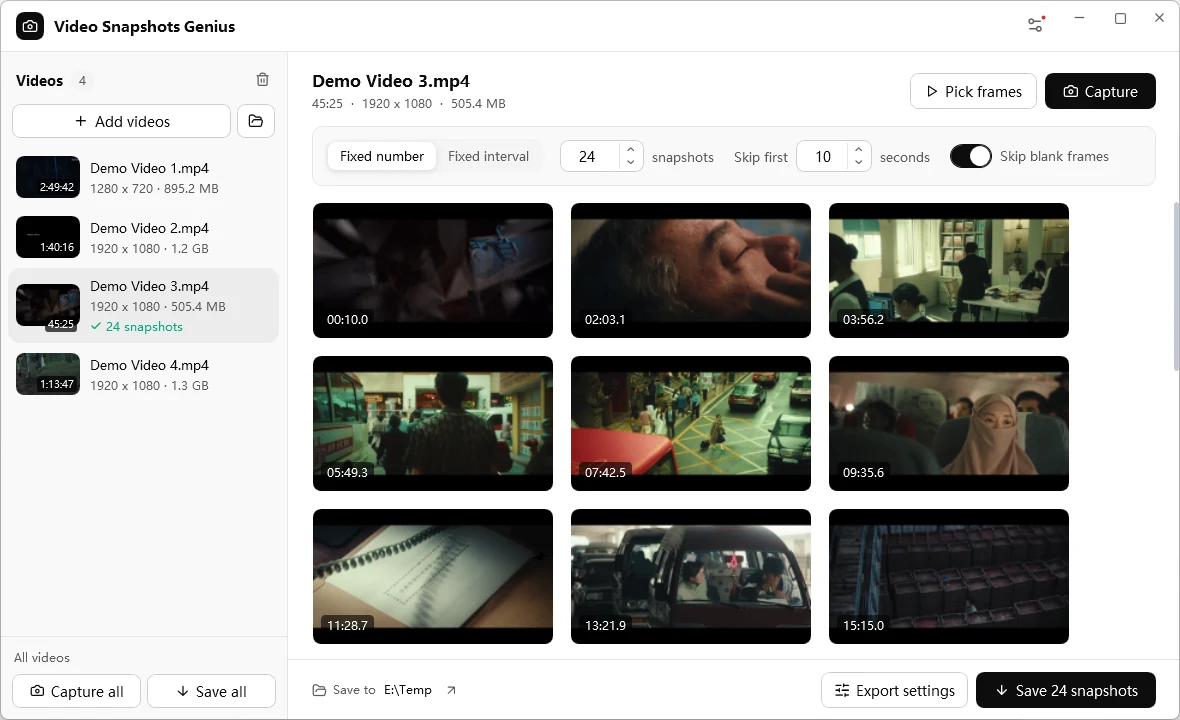
The same window in the Black, White & Gray theme, if you prefer a quiet look
1
Add
Drag in video files or a whole folder, or use Add videos (Ctrl+O). The program reads each video's duration, resolution and codecs, shows a cover thumbnail and skips anything already in the list.
2
Capture
Choose Fixed number (1 to 100) or Fixed interval (1 to 36,000 seconds), how many seconds to skip at the start, and press Capture, or Capture all for the whole list.
3
Refine
Remove shots you do not want, add exact frames with Pick frames, and double-click any snapshot to adjust, annotate or crop it.
4
Save
Set size, format and watermark in Export settings, then Save or Save all. Each video gets its own folder, and the output folder opens when it is done.
Skip blank frames
The feature that makes a set publishable
When it is on (it is by default), every captured frame is analysed before it is kept. Careful, not aggressive: dark night scenes and moody low-light shots stay.
Careful, not aggressive
A frame counts as blank only when about 98% of it matches one colour within a tight tolerance. A black screen with just a tiny logo or one credit line is dropped; a dark scene with content is kept.
It fills the gap
In Fixed number mode, when a planned shot lands on a blank frame, the program looks further along the timeline and substitutes the nearest usable frame. The label always shows the true time.
It respects your intent
Fixed interval mode keeps strict, even spacing and simply leaves blanks out. Frames you pick by hand are never filtered.
It tells you
If a blank frame could not be replaced you get a short notice with the count, so you never wonder why a set came up short.
The analysis samples the picture before the image is even created, so it adds virtually no time to a normal capture.
Features
Capture, pick, edit and export without leaving the app
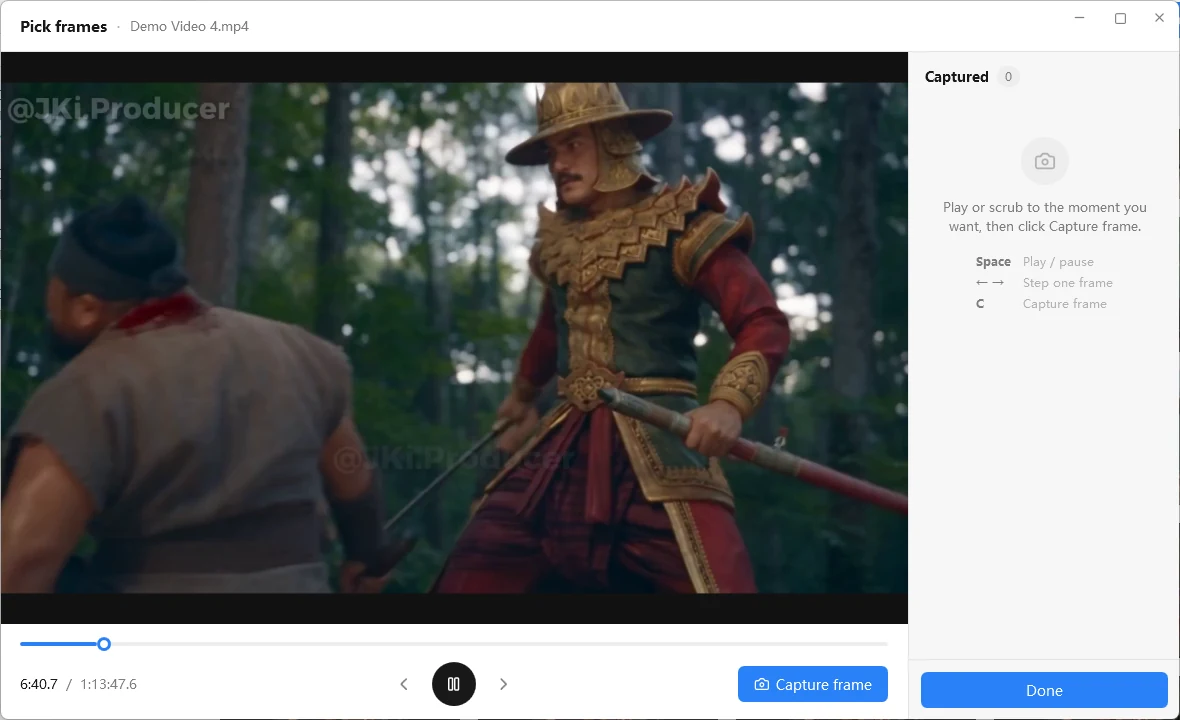
Pick frames: play, scrub, step one frame, press C
Pick frames
When the exact moment matters
Play and scrub·Space plays or pauses, and you can drag the timeline
Frame by frame·the left and right arrow keys step one frame back or forward
Capture·press C or click Capture frame; review and remove picks before you press Done
Combined·hand-picked frames join the video's set, sorted by time with the automatic ones, and are never filtered
Tip: run Capture first and Pick frames afterwards, because capturing again replaces the whole set.
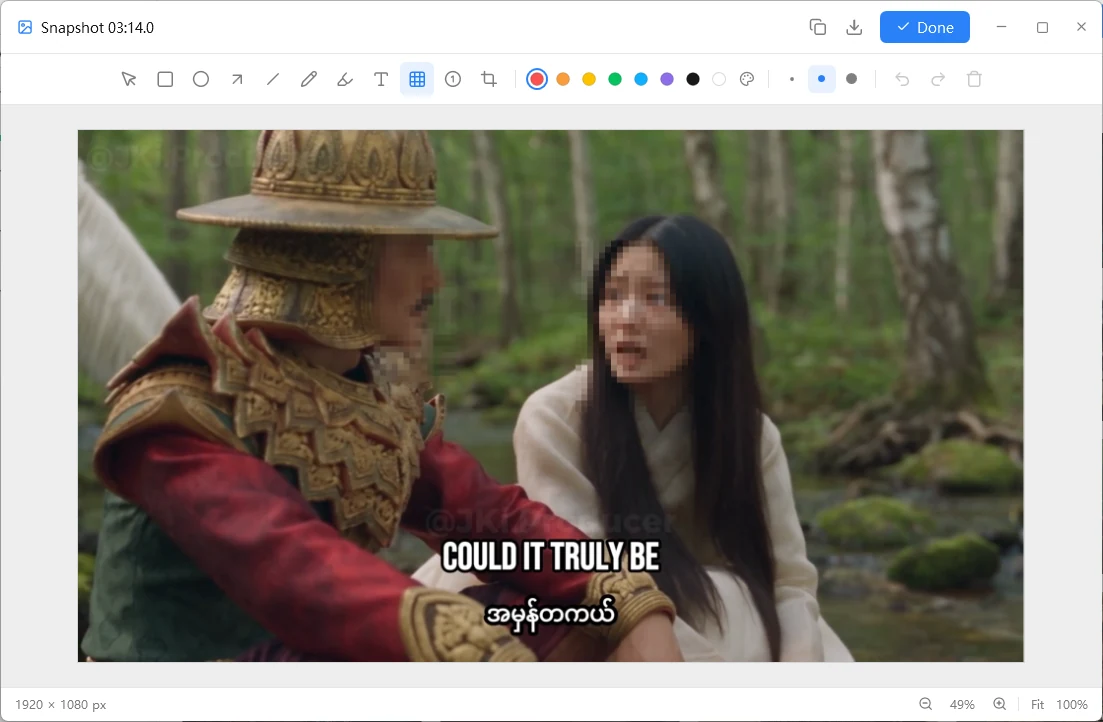
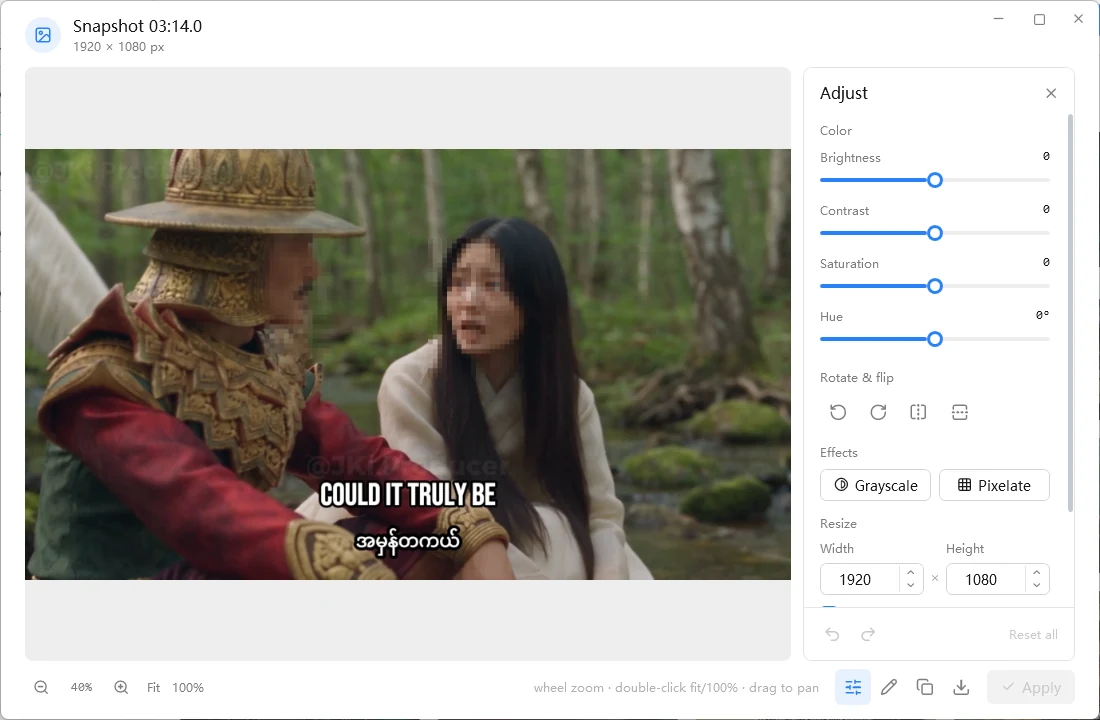
Annotate: arrows, text, numbered markers and mosaic to hide faces or platesAdjust: colour, rotate and flip, effects and resize
Edit and annotate
Touch up in the same window
Adjust·brightness, contrast, saturation and hue, from -100 to +100 (hue -180 to +180)
Rotate and effects·rotate 90 degrees, flip, convert to grayscale or pixelate
Resize·stretch, crop or pad, with Keep aspect ratio on by default
Annotate·rectangle, ellipse, arrow, line, pen, highlighter, text, numbered marker, mosaic and crop, with a full colour picker and eyedropper
Apply·the edited version becomes the snapshot used for every export, GIF and contact sheet; undo and redo are unlimited
Double-click any snapshot to open it. Copy to the clipboard or Save as a separate file whenever you like.
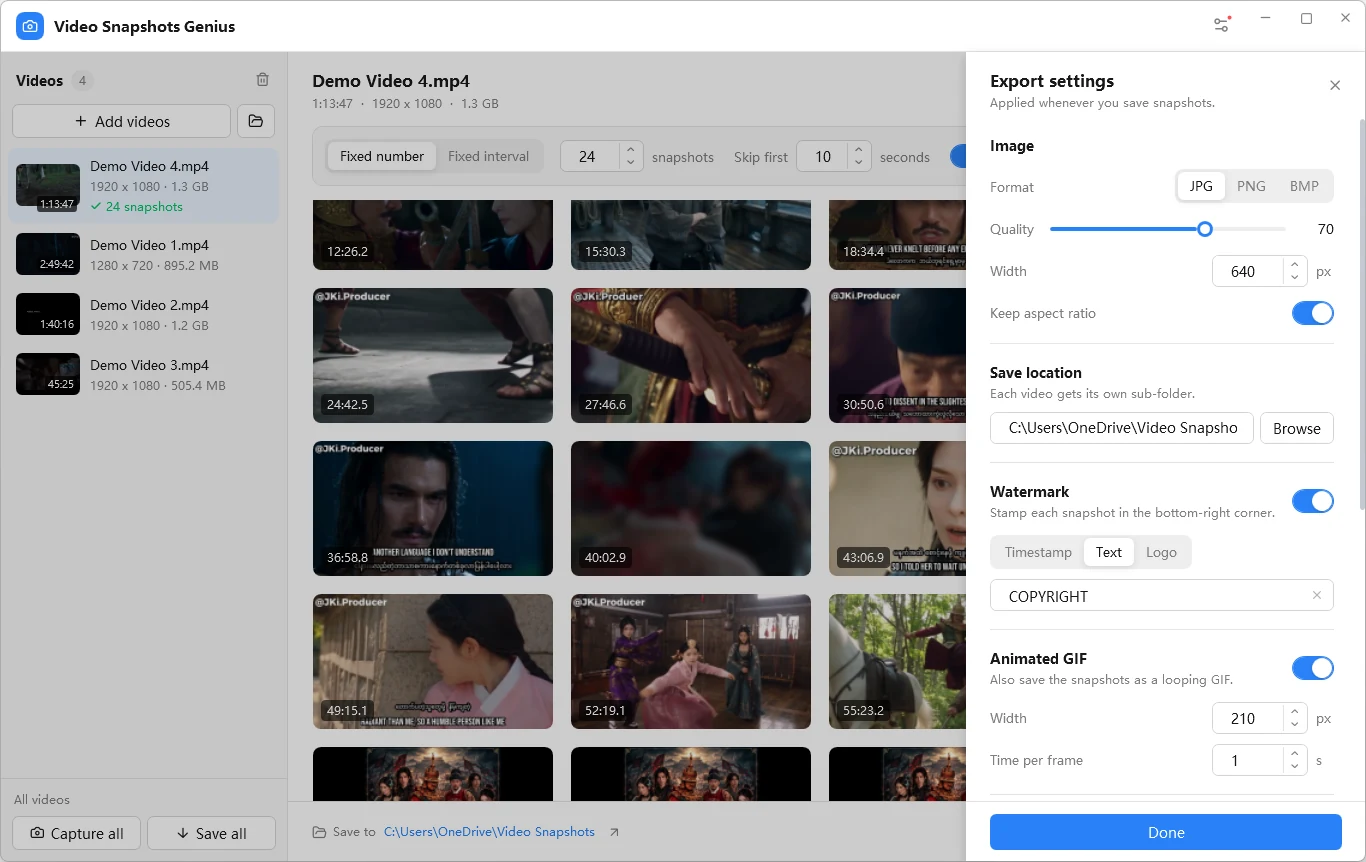
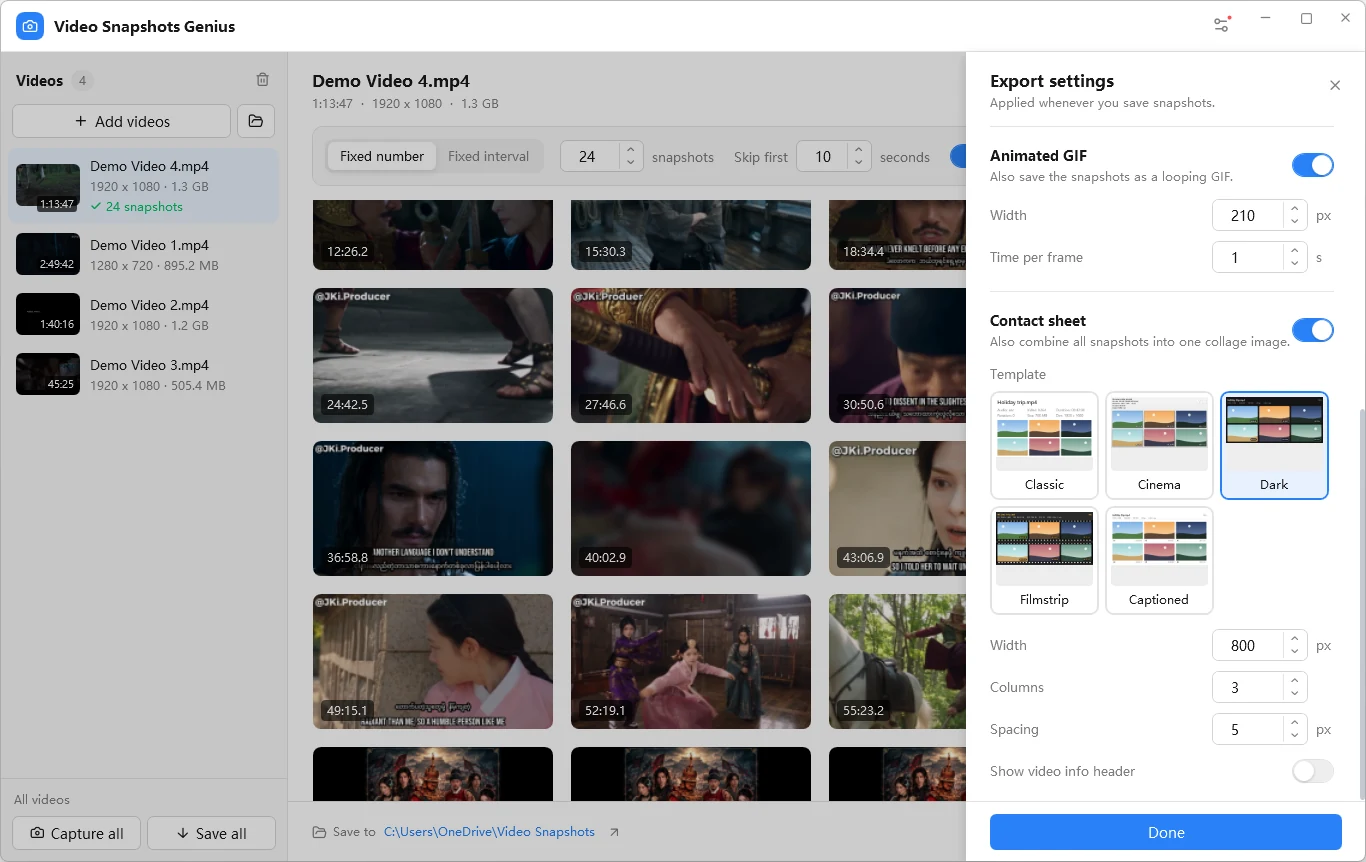
Export settings: format, size, watermark, GIF and contact sheet
Export
Exactly the files you need, applied to every image
Format and size·JPG (quality 1 to 100), PNG or BMP, up to 7680 x 4320 pixels, keep the aspect ratio or set both sides
Watermark·a timestamp such as 00:05:32, your own text, or a logo image with transparency, in the bottom-right corner
Animated GIF·all snapshots of a video in a looping preview, with a width and time per frame you choose; mixed aspect ratios are letterboxed, never stretched
Remembered·settings are saved between sessions, so the next batch is just add, capture, save
Resizing and watermarks are applied only when you save, so the snapshots in memory stay at full quality.
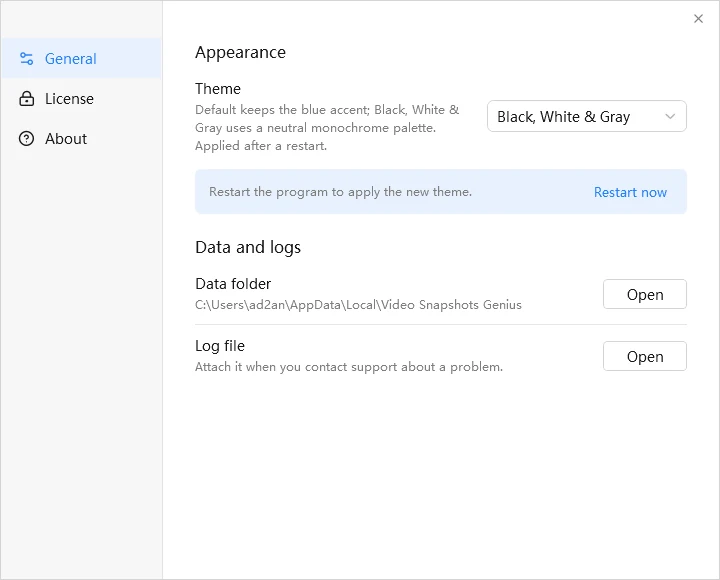
Settings: theme, license, data folder and log file
Built for batches
A handful of files or a whole folder
Capture all and Save all·process every video in the list with your settings, each into its own sub-folder
Safe batches·if one file fails the rest still complete, and you get a clear list of what went wrong
Cancel any time·videos that are already done are kept
Two looks·the default blue theme, or Black, White & Gray for a distraction-free window
Contact sheets
The whole video on one page, in five looks
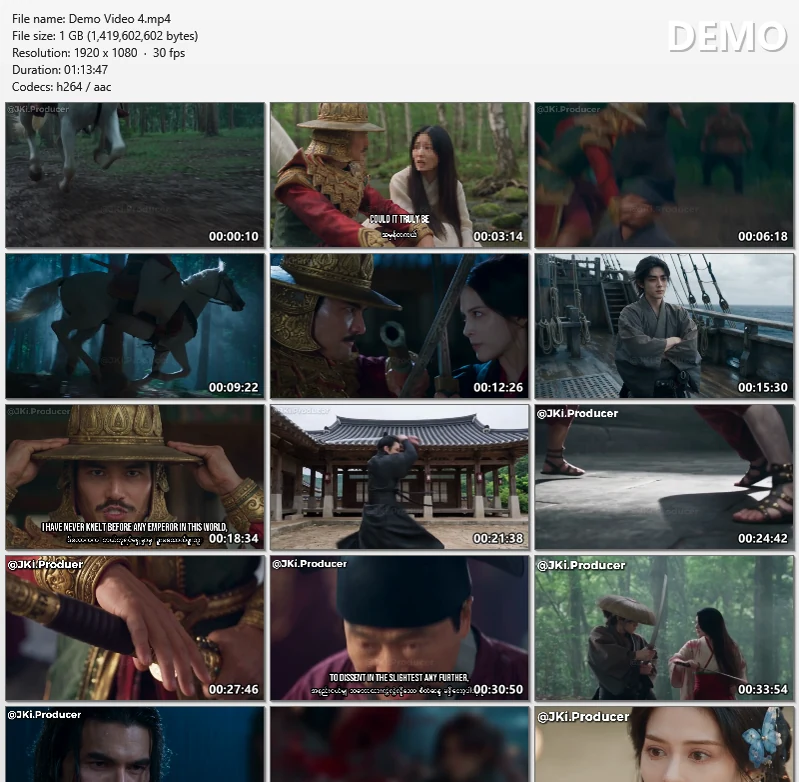
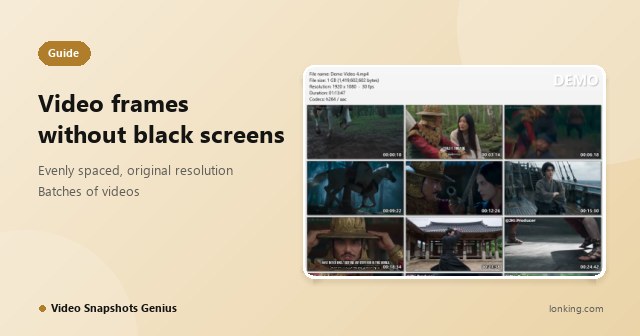
All snapshots laid out in a grid with a header showing the file name, size, resolution, frame rate, duration and codecs. Add your brand or project name as the header title.
A Cinema contact sheet: header, grid and a timecode on every frame
Cinema (default)
The classic media-player sheet: soft grey gradient, framed shots with drop shadows, an outlined timecode on every frame and a big title at the top right.
Dark
A sleek dark canvas with rounded frames and timecode badges, made for screens, portfolios and social posts.
Filmstrip
Every row is a strip of film with sprocket holes, labelled in amber monospace, for instant cinematic character.
Captioned
Clean white cards with the shot number and timecode under each frame, ideal for reports, reviews and print.
Classic
A plain white sheet with the file name and codecs on top. No frills.
Choose the template in Export settings with a live miniature of each one. Width goes up to 7680 pixels with 1 to 360 columns, and fonts, shadows and corners scale with the width, so a sheet looks as polished at 800 pixels as at 4K. Sheets are saved as PNG.
Pick a template from its miniature, then set width, columns and spacing
Compared with what you use now
Screenshots and an image editor, or one purpose-built tool
Screenshot + image editor
Video Snapshots Genius
Resolution
Limited to the player window or the monitor
The original video resolution
Aspect ratio and rotation
Fixed by hand
Corrected automatically
Even spacing across the video
Guesswork
Exact and automatic
Black and blank frames
Spotted and deleted by hand
Discarded automatically, replaced when possible
Many videos
One at a time
Whole lists and folders in one pass
Resize, watermark, format
A separate tool, image by image
Applied to every image on save
GIF and contact sheet
Separate tools
Built in, with five contact-sheet templates
Annotation and redaction
A separate tool
Built in, with mosaic
Privacy
Depends on the tool
100% local processing
Use cases
Who uses it, and for what
Content creators and YouTubers
Pull a dozen strong thumbnail candidates in one click, skip the black transitions automatically and export a GIF teaser for social media.
Marketers and e-commerce teams
Turn product videos into catalogue and landing-page images with consistent sizing and your logo on every frame.
Educators and trainers
Convert recorded lectures and screencasts into slide-ready stills at a fixed interval, then mark key steps with arrows and numbered markers.
Technical writers and support
Grab exact frames from software demos, blur sensitive data with the mosaic tool and drop the pictures into documentation.
Video editors and post-production
Generate Cinema or Captioned contact sheets with codec and duration headers and timecodes to review footage, log shots or share dailies, branded with your studio name.
Archivists, researchers and families
Batch whole folders of recordings into time-stamped stills, each video in its own folder, or rescue the best moments of years of phone and camcorder videos.
Specifications
Operating system
Windows 10 and 11, 64-bit (x64). Not supported: Windows 7, 8, 8.1 and 32-bit Windows
Runtime
.NET Framework 4.7.2 or later (built into Windows 10 1803 and later and Windows 11)
H.264, H.265/HEVC, VP9, AV1, MPEG-2, MPEG-4 and more
Capture modes
Fixed number (1 to 100), fixed interval (1 to 36,000 s), skip intro (0 to 3,600 s), manual frame picking
Output
JPG (quality 1 to 100), PNG, BMP up to 7680 x 4320; animated GIF; PNG contact sheet up to 7680 px wide, 1 to 360 columns
Watermarks
Timestamp, text or image logo
Network
Needed only to activate a license
FFmpeg is a trademark of Fabrice Bellard, originator of the FFmpeg project. Its license ships with the program.
Trial and registration
Try it free for 15 days, then activate if it fits
Every feature works during the trial: batch capture, blank-frame filtering, GIFs, every contact-sheet template and the editor. No feature limits, and nothing is forced onto your images.
During the trial
Every feature works for 15 days from the first run
From the second day a reminder appears at startup, with Buy now, Not now and a link to enter your key
After activation
No limits and no reminders
Without a license, capturing and saving are blocked once the trial is over; browsing and settings still work
How to activate
Click Settings (the slider icon at the top right) and open the License page
Enter the name, e-mail address and license key from your order
Click Activate. The program needs an internet connection once, then restarts itself as the full version.
Are the snapshots really the same resolution as my video?
Yes. The program decodes each frame straight from the file with its built-in FFmpeg engine, so snapshots keep the original resolution, the correct pixel aspect ratio (DVD footage is corrected) and the correct orientation (portrait phone videos come out upright). Resizing only happens when you save, so you can change the output size as often as you like without capturing again.
How does it avoid black and blank frames?
With Skip blank frames on (the default) every automatic capture is checked, and a frame is dropped when about 98% of it is one colour. Dark night scenes and low-light shots are kept; a black screen with only a small logo or one credit line is dropped. In Fixed number mode the program looks a little further along the timeline and substitutes the nearest usable frame, so 24 snapshots still means 24.
Why did I get fewer snapshots than I asked for?
Fixed interval mode keeps strict, even spacing and simply leaves blank frames out. In Fixed number mode a blank frame is replaced when a usable one is nearby; if everything around it is blank it cannot be replaced. A very short video also gives fewer shots at a fixed interval. You get a short notice with the count whenever a blank frame could not be replaced.
Can I pick one exact moment?
Yes. Pick frames opens a player: press Space to play or pause, step one frame back or forward with the left and right arrow keys, and press C to capture. Hand-picked frames are added to the video's set and are never filtered, even if they are blank.
I captured again and my hand-picked frames disappeared.
Capturing again replaces all the snapshots of that video, including the ones you picked by hand. To combine both, run Capture first and use Pick frames afterwards.
Which video formats can it read?
More than 25 containers, including MP4, MKV, MOV, AVI, WMV, WEBM, FLV, MPEG, M2TS, MTS, TS, VOB, MXF and 3GP, with H.264, H.265/HEVC, VP9, AV1, MPEG-2 and MPEG-4 decoding built in. Nothing else to install: no codec packs and no external player.
Are my videos uploaded anywhere?
No. Decoding, analysis and export all happen on your computer. The internet is needed only once, to activate your license.
Which versions of Windows are supported?
Windows 10 and 11, 64-bit, with .NET Framework 4.7.2 or later (built into Windows 10 1803 and later). Windows 7, 8 and 32-bit systems are not supported, because the FFmpeg 9.0 decoding engine exists only as a 64-bit build.
What do I get when I save?
Each video gets its own folder named after the video, with the snapshots numbered in time order (1.jpg, 2.jpg and so on), plus animate.gif and collage.png if you turned the GIF and the contact sheet on. Saving the same video again overwrites files with the same names, so rename the folder or pick another location to keep older results.
What are the limits of the trial?
The trial lasts 15 days with every feature unlocked: batch capture, blank-frame filtering, GIFs, all contact-sheet templates and the editor. From the second day a reminder appears at startup. When the 15 days are over you can still open the program, browse snapshots and change settings, but capturing and saving are blocked until you activate.
Need help? Get in touch
If something does not work, or you have a suggestion, send us a message or an email. Attach the log file from Settings, General, Log file when you report a problem.
Screen grabs give the wrong resolution and land on black transitions. Capture evenly spaced snapshots straight from the file, let blank frames drop out, pick the exact frame when it matters, and export images, a GIF and a contact sheet.
Version 4.3 decodes frames with FFmpeg 9.0 at the original resolution, drops black and blank frames automatically, adds five contact-sheet templates with a video-info header and a built-in editor with annotation tools. It needs 64-bit Windows 10 or 11.