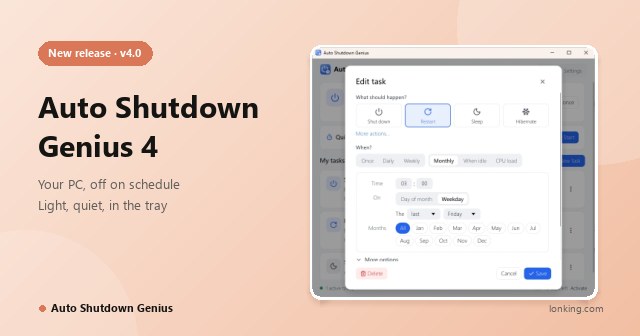
Your PC, off on schedule Schedule shutdown, restart and sleep on Windows

Set it once and your PC takes care of the rest. Shut down, restart, sleep, hibernate, sign out or lock at a set time, after a period of inactivity, or the moment a long download or render finishes. It warns before it acts, lives in the tray using only a few megabytes, and keeps your schedules on your PC.

Windows 10 and 11 (64-bit) · installer about 5 MB

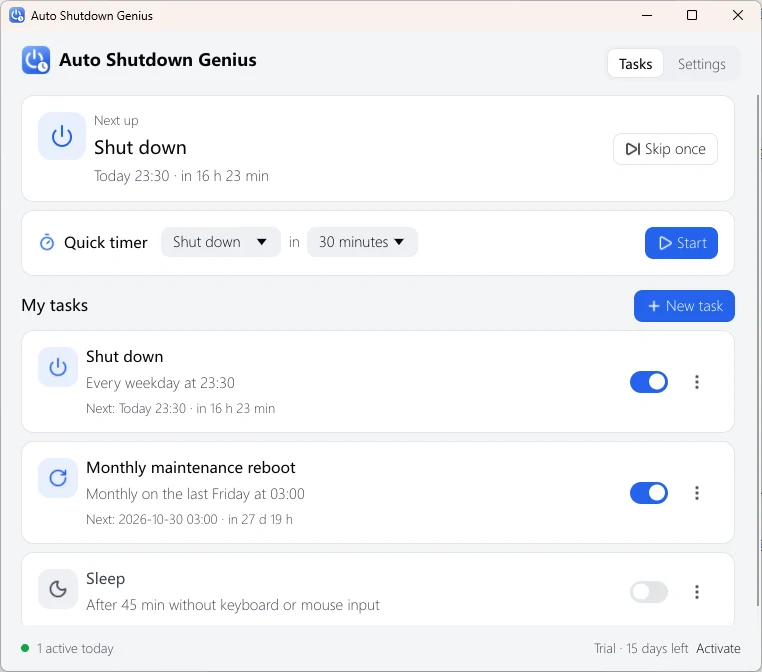
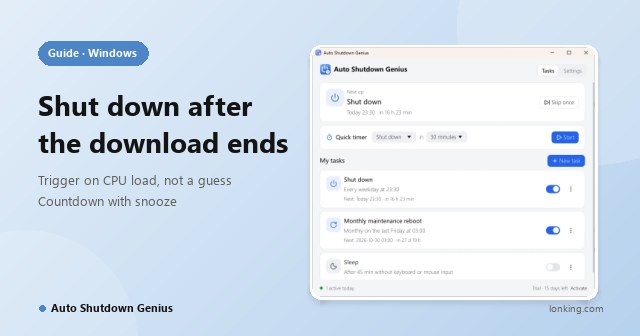
Auto Shutdown Genius main window: Next up shows Shut down today at 23:30, a quick timer, and the task list with a weekday shutdown, a monthly maintenance reboot and a sleep after idle
What runs next, a quick timer and all your tasks at a glance

8 actions

Shut down, restart, sleep, hibernate, sign out, lock, turn off display, screen saver

6 ways to say when

Once, daily, weekly, monthly, when idle, or when CPU load drops

Quick timer

"Shut down in 30 minutes" in two clicks; it removes itself after it runs

Always in control

A countdown with snooze and cancel, skip once, pause all and a full history

A PC that never gets a bedtime

A download finished at 2 a.m. and the PC kept humming until morning

Nobody decides to waste that electricity. People simply forget, or the right moment to shut down arrives when they are not there.

Electricity for nothing

A desktop PC left on but unused keeps drawing power all night and all weekend, across one PC or twenty.

How Auto Shutdown Genius helps

Shut down, sleep or hibernate on a schedule, or after a period of inactivity.

Hardware wears with every hour

Fans, drives and power supplies age with runtime, whether anyone is using the machine or not.

How Auto Shutdown Genius helps

Weekly and daily schedules switch the PC off at the same time every evening.

An unlocked machine left alone

A signed-in, unlocked computer in an empty room is an open door.

How Auto Shutdown Genius helps

Lock or sign out on a schedule, or after a few minutes without keyboard or mouse input.

Reminders rely on memory

Sticky notes and good intentions do not shut anything down at 23:30.

How Auto Shutdown Genius helps

Tell it what to do and when, and it does it every time.

The shutdown command is one-shot

The command line needs a one-time delay typed in by hand and does not repeat.

How Auto Shutdown Genius helps

Once, daily, weekly and monthly schedules, including the last Friday of the month.

Task Scheduler needs a wizard

It can do almost anything, but only after a multi-screen wizard that most people never finish.

How Auto Shutdown Genius helps

The main window shows what runs next, and your first schedule takes two clicks.

An illustration, not a measurement: a PC that draws 80 W and runs 10 unneeded hours a day uses about 292 kWh a year, roughly $44 at $0.15 per kWh. Substitute your own numbers; a 20-PC office would waste about 20 times as much. Sleep and hibernate cut consumption further when a full shutdown is not wanted.

Up and running in three minutes

You will not need a manual for your first schedule

Common choices are in front of you; less common options are folded away until you need them.

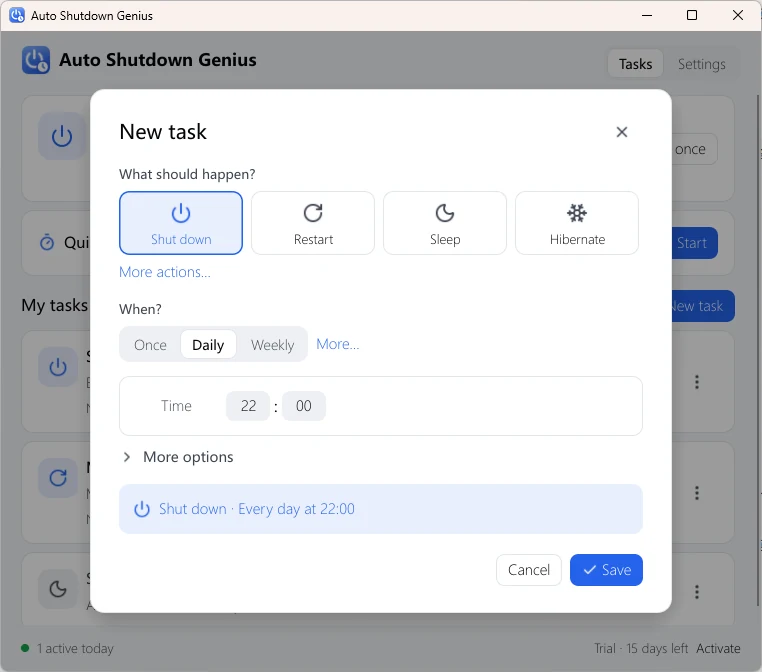
Auto Shutdown Genius New task window: What should happen with Shut down, Restart, Sleep and Hibernate, then When with Once, Daily and Weekly and a time
New task: pick an action, pick a time, save
  1. 1

    Download and install

    The installer is about 5 MB. When setup finishes the program starts and puts an icon in the notification area next to the clock.

  2. 2

    Choose an action and a time

    Click New task, pick what should happen and when, or try the Quick timer for a one-off such as "shut down in 30 minutes".

  3. 3

    Save

    The icon stays in the tray and your PC is on schedule. Start with Windows is on from the first run, so schedules survive restarts.

Eight actions, six ways to say when

Schedules that fit real life

Actions

Shut down Restart Sleep Hibernate Sign out Lock Turn off display Screen saver
Once A date and a time: "Shut down tonight at 23:30."
Daily A time, every day or every few days.
Weekly Weekdays, weekends or any days you pick, every week or every few weeks.
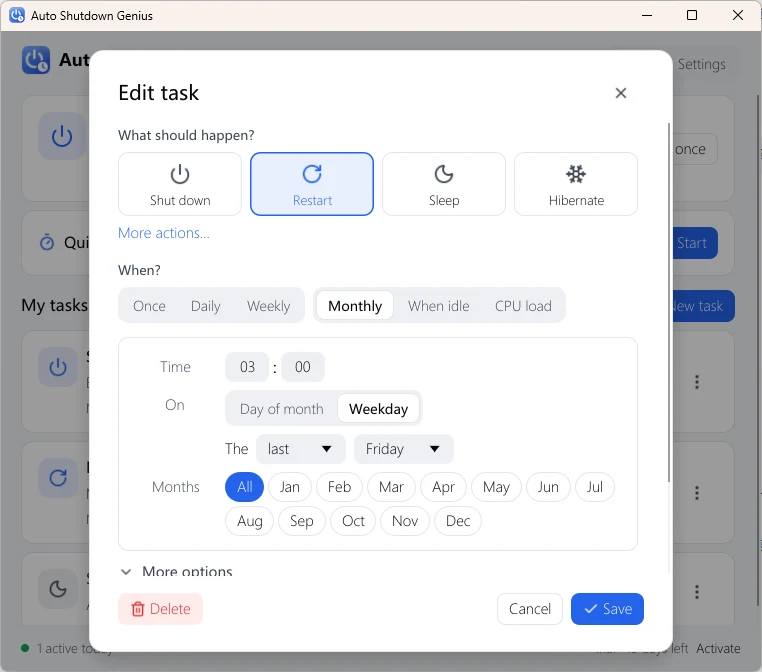
Monthly On a day of the month (in shorter months, the last day), or on a weekday such as the last Friday, in the months you choose.
When idle After N minutes without keyboard or mouse input.
CPU load When CPU usage stays below (or above) a level for N minutes: "when CPU stays below 10% for 5 minutes, shut down."
Auto Shutdown Genius task editor for a monthly restart at 03:00 on the last Friday of every month, with a plain-language summary at the bottom
Even "the last Friday of every month at 03:00", with a plain-language summary before you save

The CPU load trigger deserves a special mention. Instead of guessing how long a download, render, backup or update will take, you tell the PC what finished looks like, and it leaves when the work is done, not a minute earlier or hours later.

Features

Trust by design: you are always in control

Automation people cannot stop is automation people will not use, so the safeguards are built into every task.

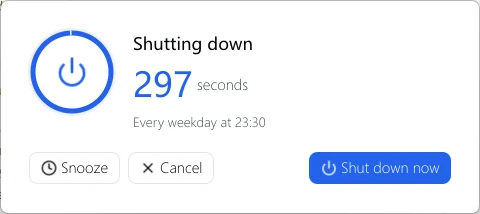
Auto Shutdown Genius countdown window with Snooze, Cancel and Shut down now buttons
The countdown: Snooze, Cancel, or run it now
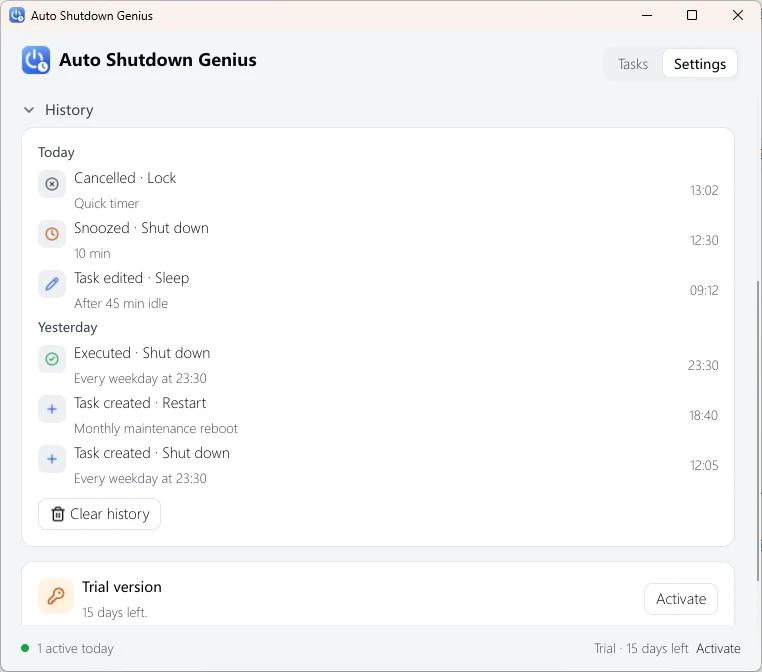
Auto Shutdown Genius History page listing what ran, was cancelled or snoozed, grouped by day
History: what ran, was cancelled or snoozed, and any errors

Safeguards

Never caught by surprise

  • Countdown warning·before an action runs, a window appears on top. Snooze 5, 10, 30 or 60 minutes, Cancel this run, or run it now; an optional reminder sound announces it
  • Skip once·skip a single occurrence from the main window without touching the schedule
  • Pause all·one click on the tray icon suspends every task during a long overnight job
  • Full history·the newest 10,000 events, grouped by day, so you can always see what happened and when
  • Plain-language summary·the task editor restates your schedule in a sentence before you save

Save your work: shutting down, restarting and signing out close all programs.

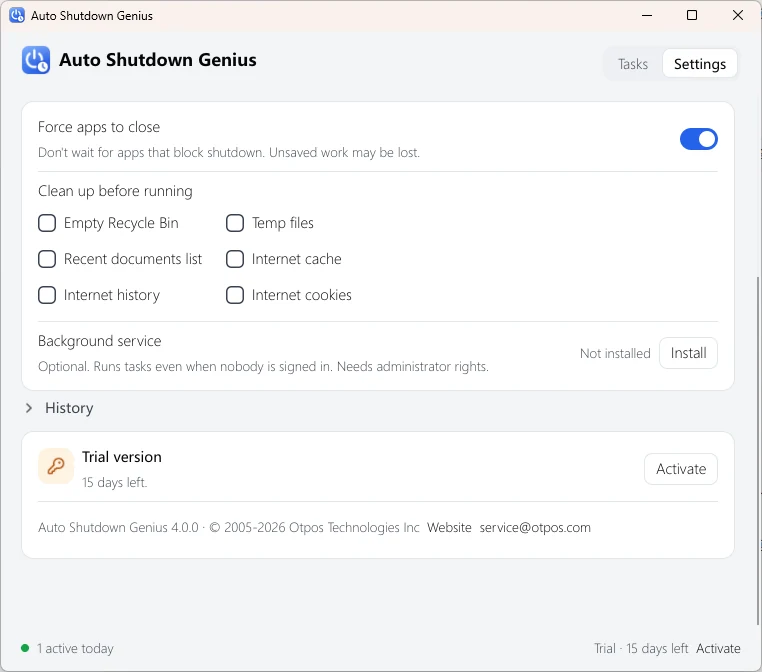
Auto Shutdown Genius advanced settings: Force apps to close, Clean up before running with a list of items, and the optional Background service
Advanced: force-close, clean-up and the background service

Power options

Built for how people really use PCs

  • Clean up on the way out·before a shutdown, restart or sign-out, optionally empty the Recycle Bin and clear temp files, the recent-documents list, Internet cache, history and cookies; the deleted data cannot be recovered
  • Works when nobody is signed in·install the optional background service to run tasks before anyone logs on or after everyone has signed out
  • Force apps to close·if a stubborn program blocks shutdown, a schedule is never held hostage (the countdown gives users time to save first)
  • Light and quiet·sits in the tray using a few MB of memory, starts with Windows, and follows the Windows light or dark theme in English or Simplified Chinese
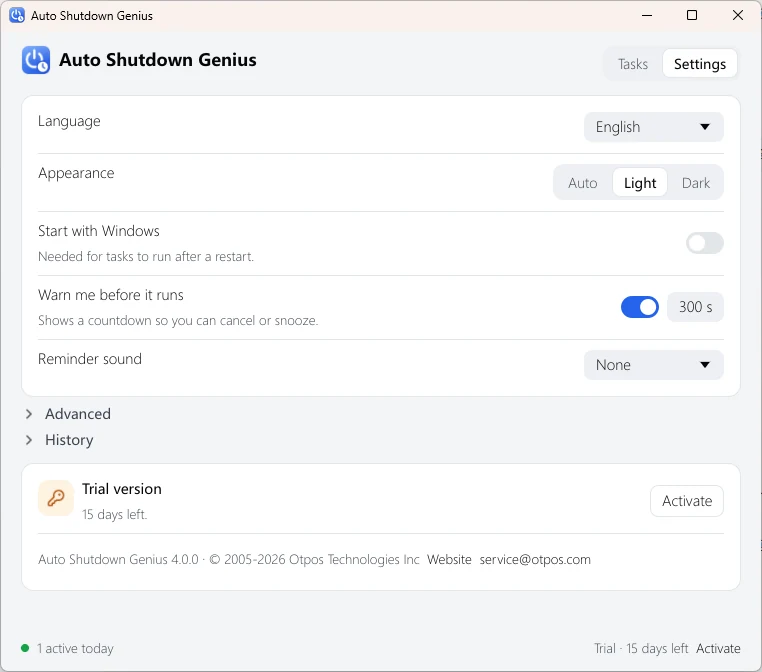
Auto Shutdown Genius Settings: language, appearance, start with Windows, warn me before it runs with a countdown length, and a reminder sound
Settings: language, appearance, countdown length and reminder sound

Settings

Simple, and private

  • Everyday settings·language, appearance (auto, light or dark), Start with Windows, a countdown of 5 to 600 seconds and a reminder sound
  • Local, readable data·tasks and settings live in your user profile, in plain files that are easy to back up
  • No cloud, no account·your schedules never leave your computer; the program goes online only to activate a license
  • Reliable by construction·it starts with Windows, an optional service handles unattended machines, and a log records every action

Why not just use Windows?

Windows can technically do much of this. Auto Shutdown Genius makes it something people actually do.

shutdown command Task Scheduler Auto Shutdown Genius
Easy to set up Command line Complex wizard Two clicks
Repeating schedules No Yes Yes
Monthly "last Friday" No Yes, but hard to find Yes
Run when idle No Limited Yes
Run when CPU load is low No No Yes
Countdown with snooze and cancel No No Yes
Skip one run, pause all No Manual Yes
Clean-up before shutdown No No Yes
History of what ran No Hidden in logs Yes

Use cases

Who benefits most

Home users and parents

The PC goes off at bedtime, or after an overnight download. The kids' computer is locked at 21:30 on school nights.

Gamers, streamers and video editors

Sleep or shut down after a large update or upload completes, and power the workstation off when a long render finishes.

Small offices

Every workstation off at 19:00 on weekdays, and a restart for maintenance on the last Friday of the month.

IT and shared PCs

With the background service, schedules are enforced even when no one is logged in.

Energy-conscious users

Hibernate after 30 minutes of no input, or sleep after inactivity, to cut electricity use.

Anyone with a one-off job

The quick timer: "shut down in 30 minutes", then forget about it.

Specifications

Version 4.0
Operating system Windows 10 and Windows 11, 64-bit. Windows 7 and 8 are not supported
Installer and memory Installer about 5 MB; a few MB of memory while running in the tray
Actions Shut down, restart, sleep, hibernate, sign out, lock, turn off display, screen saver
Triggers Once, daily, weekly, monthly (date or weekday), when idle, CPU load
Interface English and Simplified Chinese; light and dark themes that follow Windows
Data Tasks, settings and history in %LOCALAPPDATA%\Auto Shutdown Genius; history keeps the newest 10,000 entries
Internet Needed only to activate a license
Administrator rights Needed to install, and for the optional background service
License Perpetual; one license covers two computers

Trial and registration

Try it free for 15 days, then activate if it fits

Every feature works during the trial. No credit card or registration is needed to try it.

During the trial

  • Every feature works for 15 days from the first run
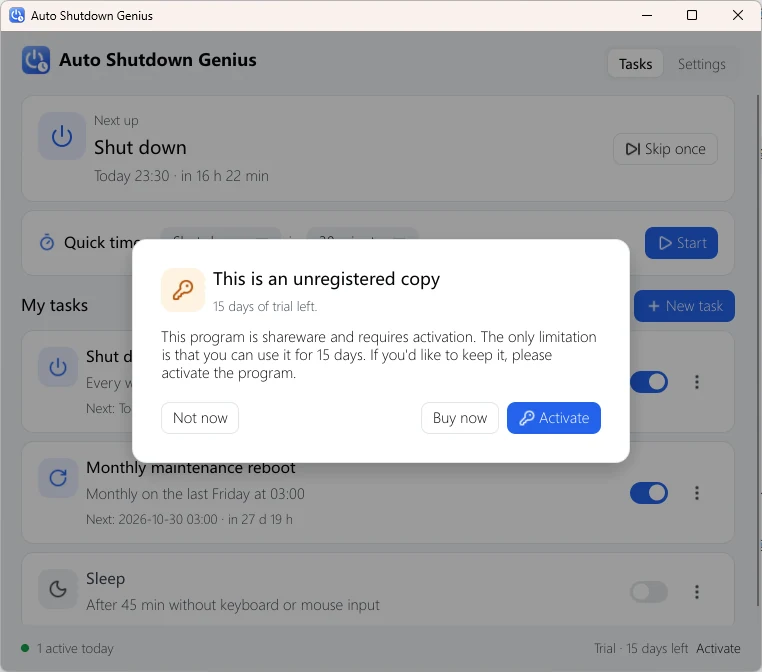
  • From the 10th day a reminder appears at startup, with Not now, Buy now and Activate

Activated

  • Perpetual license, personal and commercial use
  • One license covers two computers
  • After a trial that ends unactivated, tasks pause; nothing is deleted

How to activate

  1. Buy a license; the key arrives by e-mail
  2. Click Activate in the status bar, on the Settings page or in the reminder
  3. Enter the name, e-mail and license key exactly as in your order and click Activate. It needs an internet connection once.

See the activation guide for details. If you replace a computer or reinstall Windows and activation fails, contact us.

Auto Shutdown Genius unregistered reminder with Not now, Buy now and Activate
The trial reminder, from the 10th day

Buy a license

Try the full program first (15-day free trial), then choose a license. Your license key is e-mailed to you after checkout. Prices are in US dollars.

Most popular

Personal License

$ 59 .99

One payment, no expiry, updates included.

Private, non-commercial use at home. One license covers 2 computers.

  • Every feature, no watermark
  • Updates included
  • License key e-mailed after checkout
Buy Personal

Commercial License

$ 119 .99

One payment, no expiry, updates included.

Use in a company or any other business. One license covers 2 computers.

  • Every feature, no watermark
  • Updates included
  • License key e-mailed after checkout
Buy Commercial

Education License

$ 29 .99

One payment, no expiry, updates included.

Students, teachers and schools. One license covers 2 computers.

  • Every feature, no watermark
  • Updates included
  • License key e-mailed after checkout
Buy Education
  • Secure checkout with PayPal
  • 30-day money-back guarantee
  • One license covers 2 computers

Several licenses, a school or a non-profit? Ask us for a quote. Already bought? See the activation guide or look up your license key. By buying you agree to the store's terms.

Auto Shutdown Genius

Download

The latest version of Auto Shutdown Genius is v4.0 for Windows. It is free to download and includes a 15-day trial with every feature.

Requires Windows 10 and 11 (64-bit) · Administrator permission to install · No Windows 7 or 8

New to the program? Read the user guide.

FAQ

Unsaved work, sign-in and the trial

Will I lose unsaved work?

A countdown window appears before every action so you can save your work, snooze or cancel. With Force apps to close turned on, programs that are still asking to save are closed anyway and unsaved work is lost; turn it off if you prefer Windows to wait.

Does it work if I am not signed in?

Yes, with the optional background service. Install it from Settings, Advanced (it needs one administrator prompt) and tasks run before anyone signs in or after everyone has signed out. It is the right choice for shared PCs, front desks, kiosks and office workstations.

Can it shut down my PC after a download finishes?

Yes. Use the CPU load trigger, for example "when CPU usage stays below 10% for 5 minutes", or the When idle trigger. The PC leaves when the work is done, not a minute earlier or hours later.

Does it collect my data?

No. Your tasks, settings and history stay on your computer, in a plain JSON file and a small database in your user profile. There is no cloud service and no account. The program goes online only to activate a license.

Can I use it on my laptop and my desktop?

Yes. One license covers two computers, for example a desktop and a laptop, or home and office. The license is perpetual, and you can use it for personal and commercial purposes.

What happens when the trial ends?

Scheduled tasks stop running until you activate. Nothing is deleted, and you can still open the program and change settings. From the 10th day of the trial a reminder appears each time the program starts.

A task did not run. What should I check?

Check that the program is running (its icon is in the notification area, you may need to click the arrow to see it), that Start with Windows is on, that the task switch is on and not set to Skip next time, and that tasks are not paused. Open History to see whether the task was cancelled, snoozed or failed.

Hibernate does nothing.

Hibernation may be turned off in Windows. Open a Command Prompt as administrator and run powercfg /hibernate on.

The When idle trigger never fires.

Some programs, such as video players or remote-desktop tools, keep the computer from becoming idle. Use a time-based task or a CPU load task instead.

Which versions of Windows are supported?

Windows 10 and Windows 11, 64-bit. Windows 7 and Windows 8 are not supported. The installer is about 5 MB and the program uses only a few megabytes of memory in the tray.

Need help? Get in touch

If something does not work, or you have a suggestion, send us a message or an email.