Video Snapshots Genius 4.3: Skip Blank Frames and Five Contact Sheet Templates
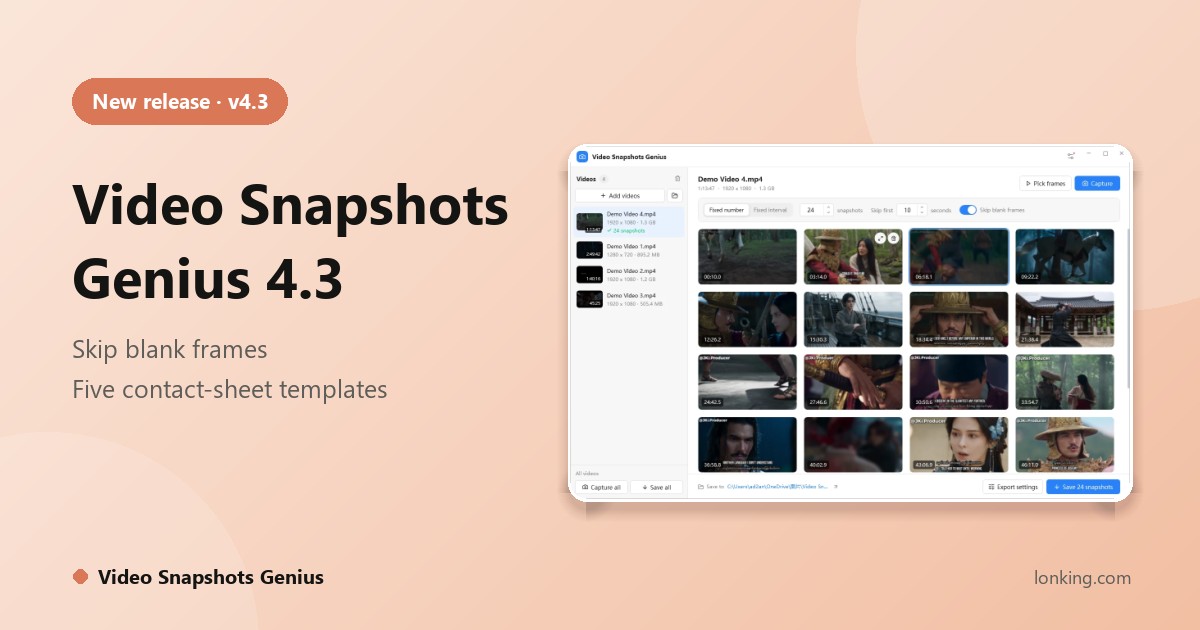
Video is easy to record and hard to reuse as pictures. Video Snapshots Genius 4.3 turns one video, or a whole folder, into clean, ready-to-publish images: frames are read straight from the file at the original resolution, spaced evenly across the timeline, and black and blank frames drop out automatically.
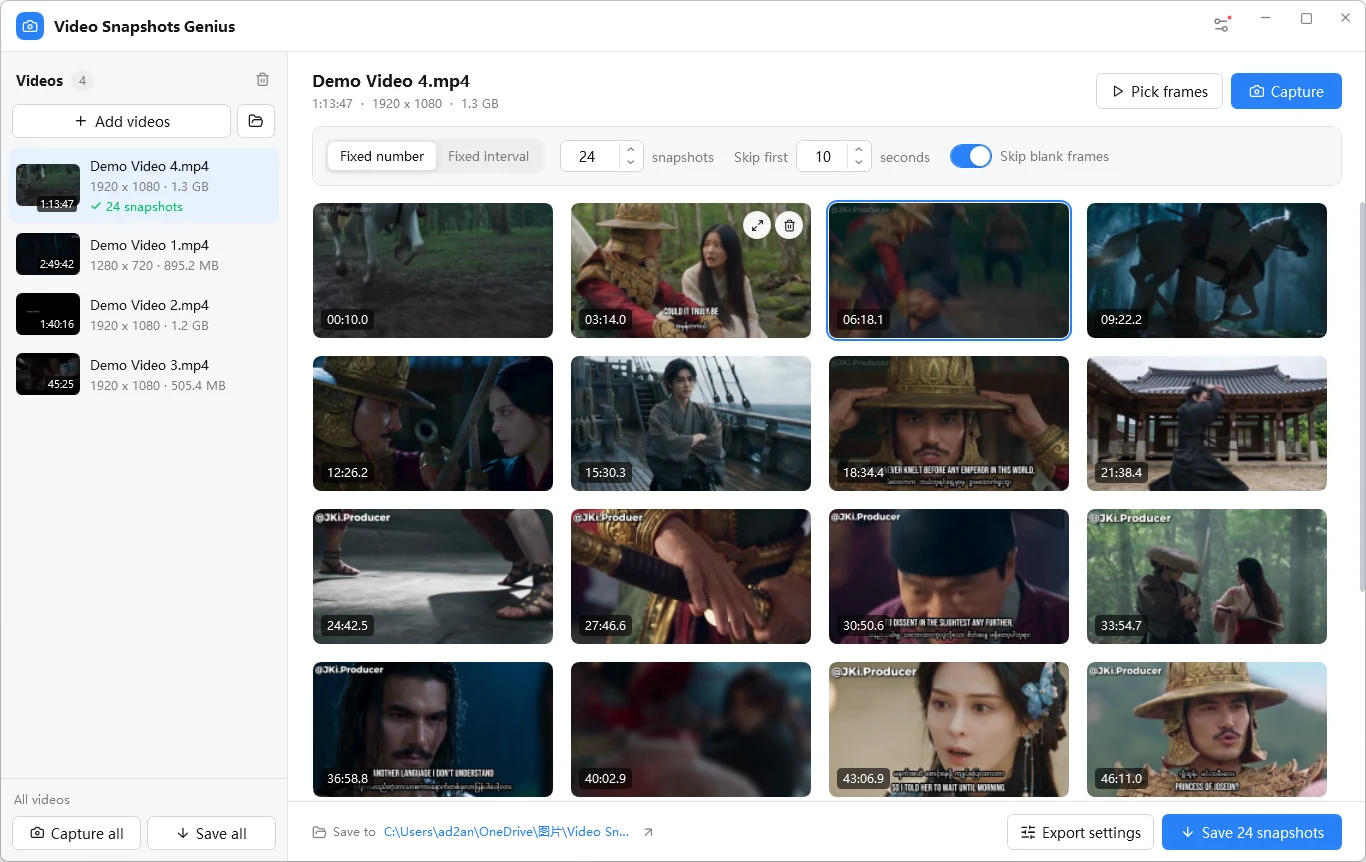
Skip blank frames
When it is on (it is by default), every captured frame is analysed before it is kept. A frame that is about 98% one colour, such as a cut to black or a white flash, is discarded, while dark scenes with content stay. In Fixed number mode the program substitutes the nearest usable frame so that 24 snapshots still means 24, and if a blank frame cannot be replaced you get a short notice with the count.
Five contact-sheet templates
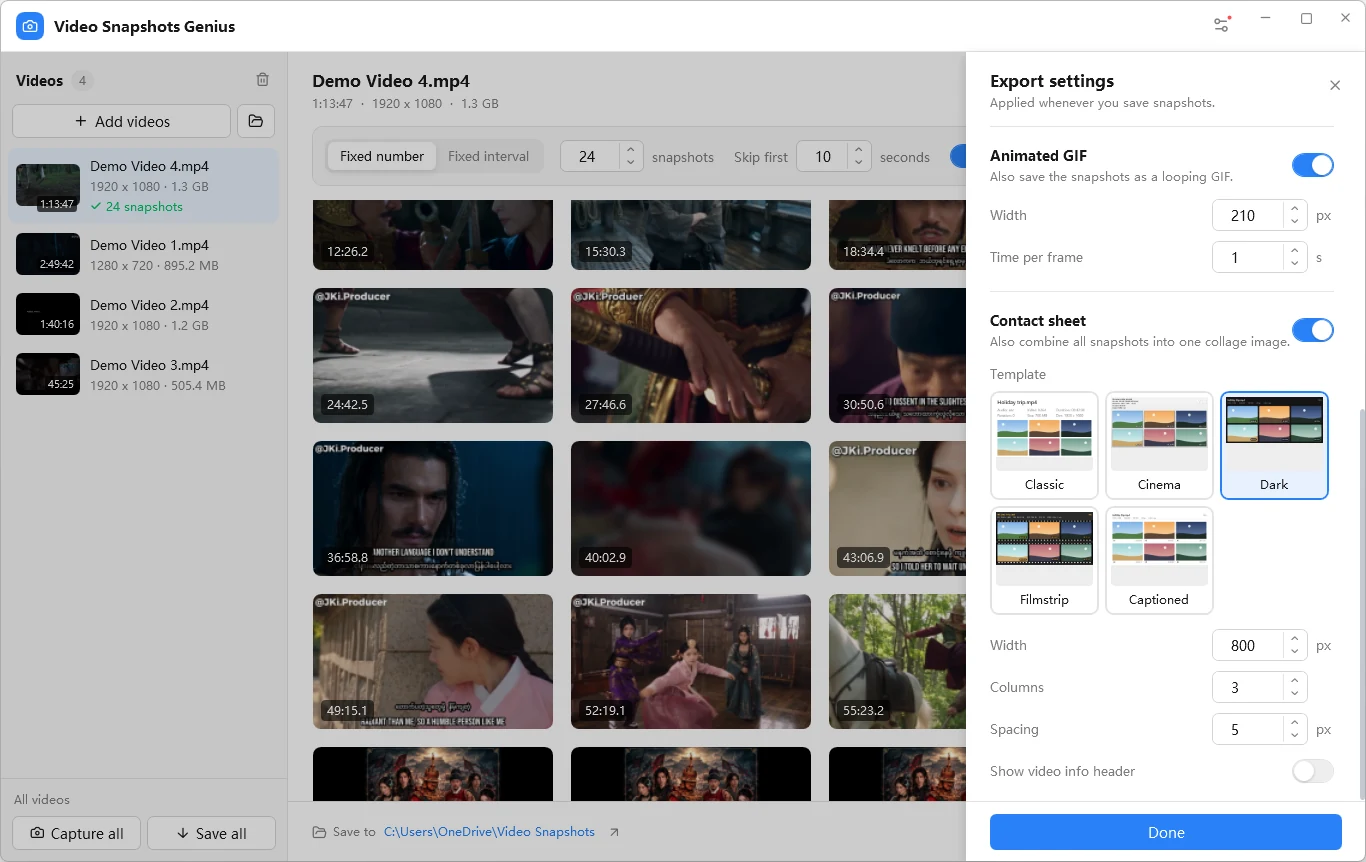
The contact sheet shows everything in a video on one page, with a header giving the file name, size, resolution, frame rate, duration and codecs, and your own title. Choose a look from a live miniature in Export settings:
- Cinema (default): the classic media-player sheet with shadows and outlined timecodes.
- Dark: rounded frames and timecode badges, made for screens and social posts.
- Filmstrip: rows of film with sprocket holes and amber monospace labels.
- Captioned: white cards with the shot number and timecode, ideal for reports and print.
- Classic: a plain white sheet with the file name and codecs on top.
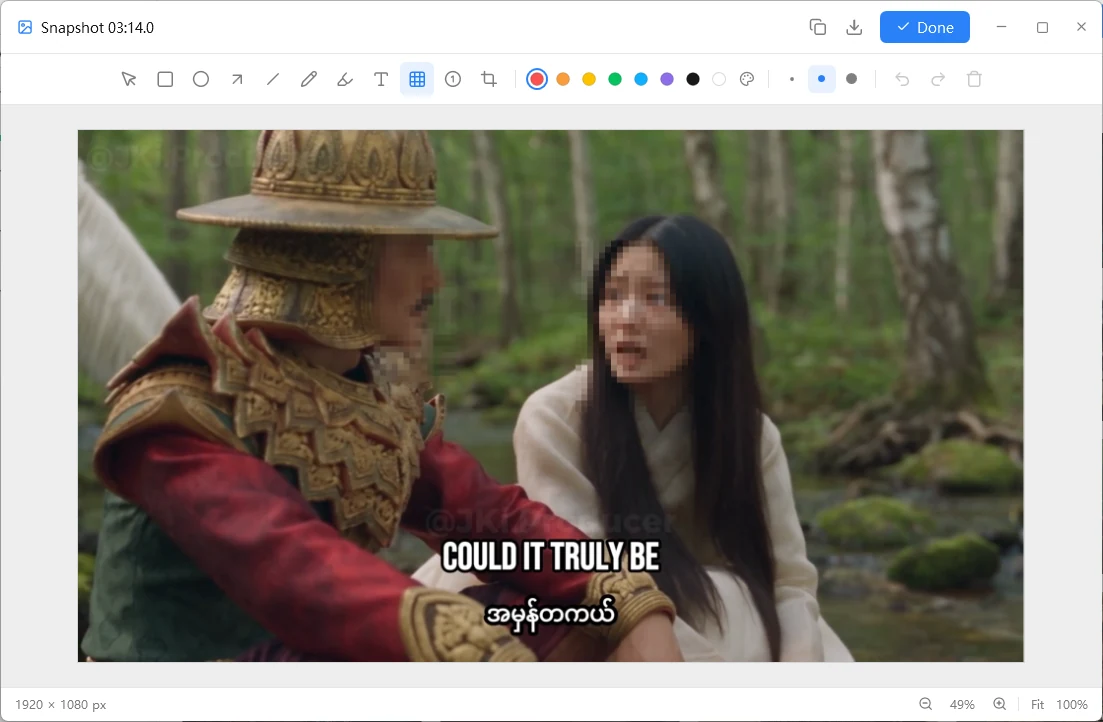
Edit and annotate without leaving the app
Double-click a snapshot to open the full-size viewer. Adjust brightness, contrast, saturation and hue; rotate, flip, convert to grayscale or pixelate; resize with stretch, crop or pad. The annotation editor adds rectangles, ellipses, arrows, lines, a pen, a highlighter, text, numbered markers and a mosaic to hide faces, plates or personal data. Apply makes the edited version the snapshot used for every export, GIF and contact sheet.
More in 4.3
- Pick frames with frame-by-frame stepping for the exact moment.
- Batches: Capture all and Save all, each video into its own folder; one failed file never stops the rest.
- Export: JPG, PNG or BMP, resize, a timestamp, text or logo watermark, and an animated GIF.
- Formats: more than 25 containers with H.264, H.265/HEVC, VP9, AV1, MPEG-2 and MPEG-4 decoding built in (FFmpeg 9.0), so there is nothing else to install.
- Themes: the default blue, or Black, White & Gray for a distraction-free window.