Set it once. Process hundreds of photos.
Batch photo resizer for Windows
Resize, convert, watermark and rename a whole folder of pictures in a single pass. A live preview shows the processed result and its file size before anything is written, your originals stay untouched, and your pictures never leave your PC.
Windows 10 or later (32-bit and 64-bit) · English, Chinese, French, Spanish
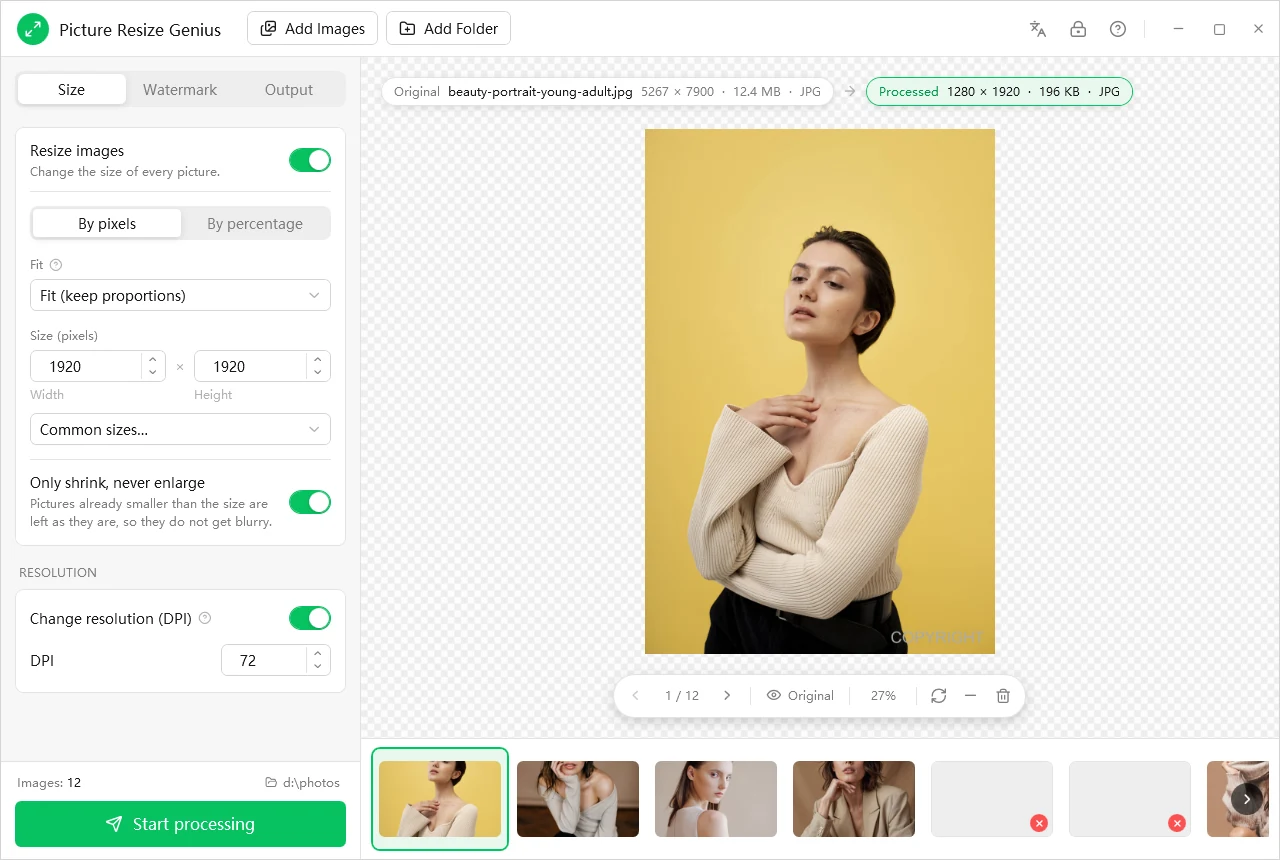
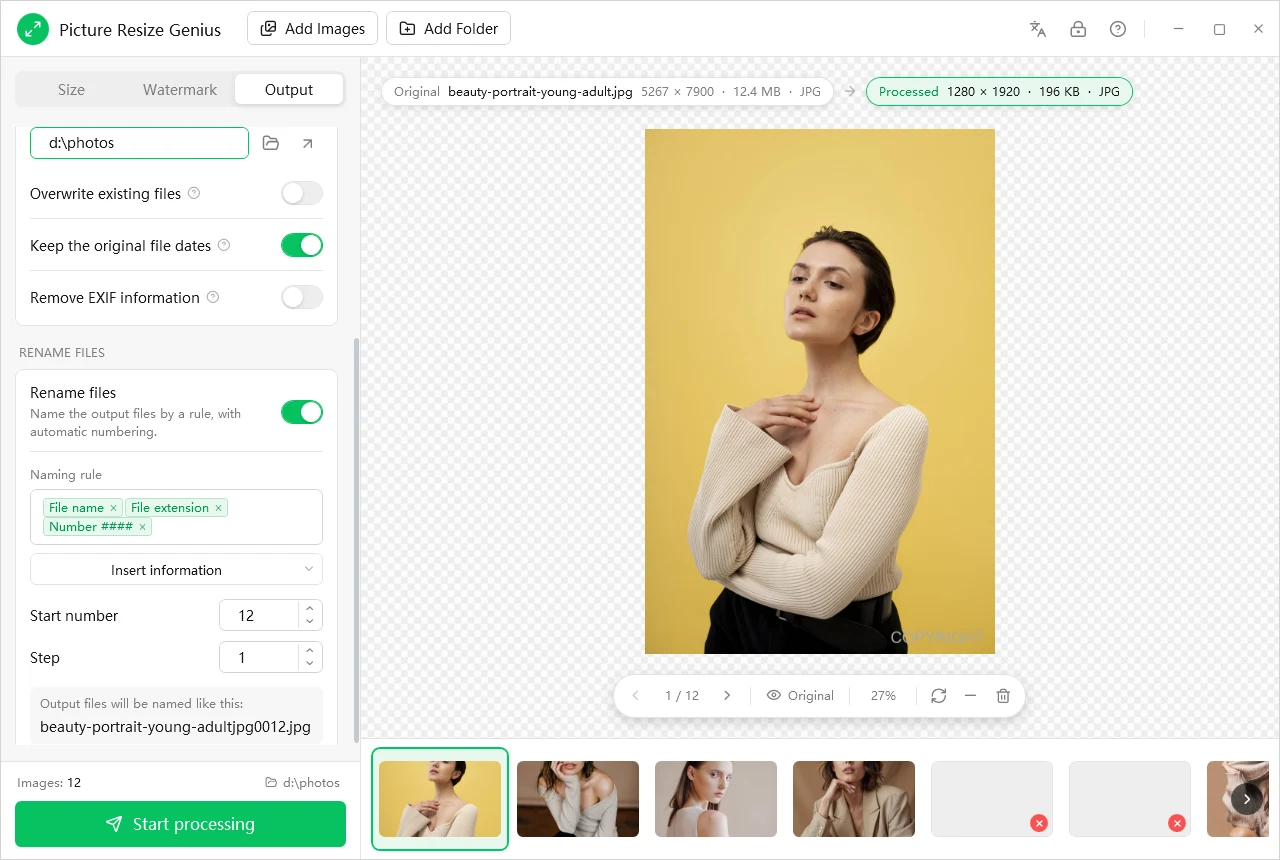
5267 x 7900 and 12.4 MB in, 1280 x 1920 and 196 KB out, checked before you start
Live preview with file size
Reads 150+ formats
Originals never overwritten
On your PC, never uploaded
150+ / 60+
Reads more than 150 formats and writes more than 60, including RAW, HEIC, AVIF and WebP
Live preview
See the processed picture and its file size before a single file is written
Originals safe
Results are always new files; a source image is never overwritten
Multi-threaded
Several CPU cores process several pictures at once
Image work should not be manual labour
None of it takes creativity. All of it takes an afternoon.
A wedding shoot with 800 photos, 300 new product shots for a marketplace, a website asset library to recompress: open, resize, save as, rename, repeat. Picture Resize Genius turns that afternoon into two steps: set your rules, then click Start.
One image at a time
Hundreds of files, each opened, resized and re-saved by hand.
How Picture Resize Genius helps
Drop in a folder, set the rules once and process the whole batch in one pass.
Wrong size, discovered too late
With no preview you only find the mistake after processing, then start over.
How Picture Resize Genius helps
The preview runs the full pipeline and shows before and after dimensions and the estimated file size.
Originals overwritten
One careless Save on the original and a photo without a backup is lost for good.
How Picture Resize Genius helps
Results are always written as new files, with an automatic (1), (2) suffix on a name collision.
Too many formats, too many tools
Camera RAW, phone HEIC, web WebP, design PSD: every format seems to need a different program.
How Picture Resize Genius helps
Reads 150+ formats and writes 60+, so one window covers them all.
Private data shared by accident
Photos carry GPS location, camera model and timestamps, and you notice only after sending them.
How Picture Resize Genius helps
One click strips EXIF and XMP metadata, including the embedded thumbnail.
Uploading to online tools
Privacy, confidential images and slow connections all become concerns.
How Picture Resize Genius helps
Everything is processed on your own PC. Nothing is uploaded and no account is needed.
Up and running in three steps
Add, set, process
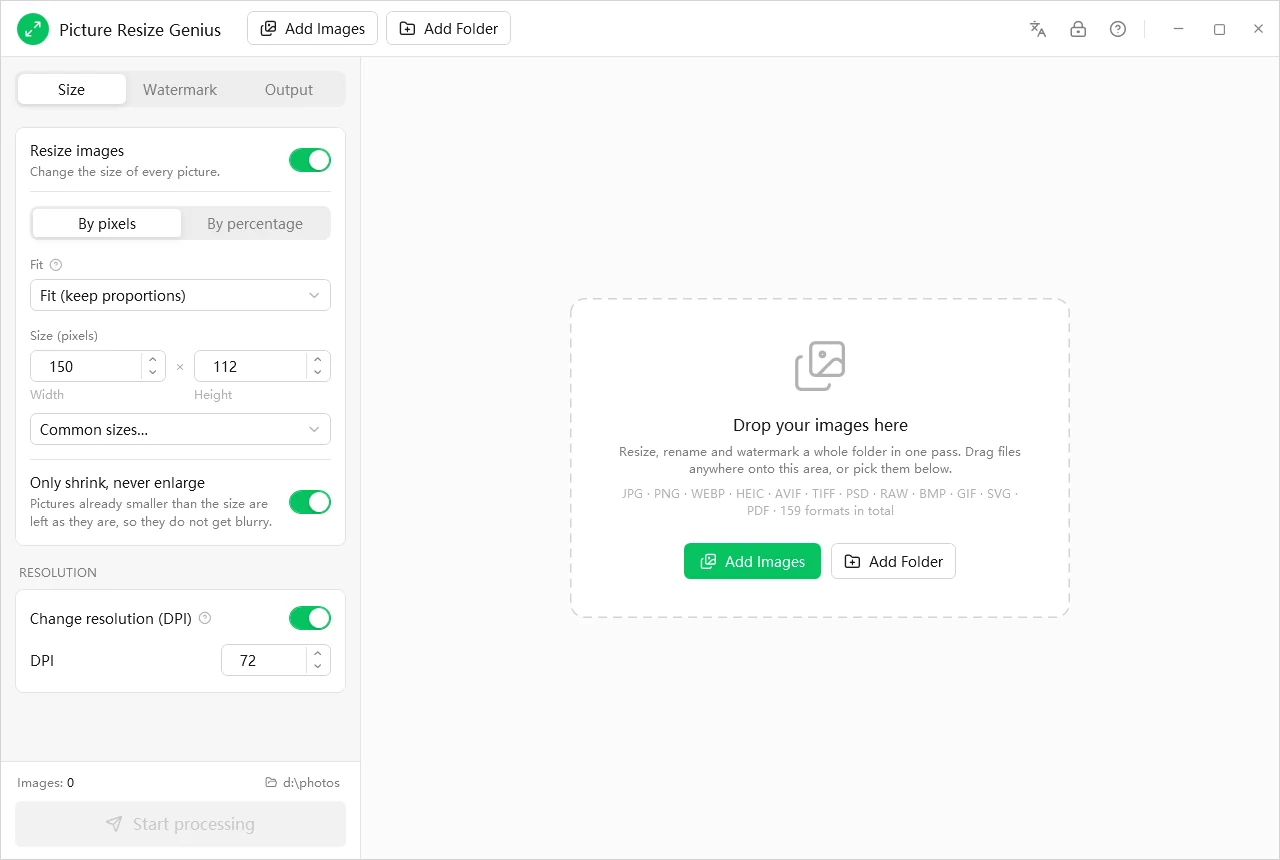
The window has a toolbar on top, three tabs on the left (Size, Watermark and Output), the preview in the middle and a big Start processing button at the bottom.
The start screen: drop files or a folder anywhere on the window
1
Add
Click Add Images or Add Folder, or drag files and folders into the window. The program reads 159 image formats, including camera RAW, and shows thumbnails along the bottom.
2
Set
Choose your rules on the Size, Watermark and Output tabs while the preview updates live, so you always see the final result.
3
Process
Confirm the output folder and click Start processing. Your originals are left unchanged.
See it before you save it
The scariest thing about batch processing is finding the mistake afterwards
Picture Resize Genius moves that risk to the front.
The full pipeline
The preview actually runs resize, watermark, output format and quality, so what you see is what you get.
Before and after
Dimensions, format and estimated file size of the original and of the processed picture, side by side above the preview.
Compare
Toggle between Original and Processed to look at the same detail, and zoom in.
Curate the batch
Page through the photos and remove any picture you do not want, then press Start processing.
Features
Resize, convert, watermark, rename: one flow
Size: pixels or percentage, fit modes, common sizes and DPI
Size
Exactly the size you need
Pixels or percentage·enter a width and height, or scale every picture by a percentage
Three fit modes·Fit keeps proportions, Crop trims to the exact size, Fill covers the box and trims the overflow
Only shrink, never enlarge·pictures that are already smaller stay as they are, so they never turn blurry (on by default)
Anchors·nine-point crop anchoring (corners, edges, centre), or random
Common sizes·one-click 1920 x 1080, 1280 x 720, thumbnails, avatars, web and email sizes and more
DPI·change the output resolution for print or web
Watermark: text or logo, position, opacity and rotation
Watermark
Brand every picture at once
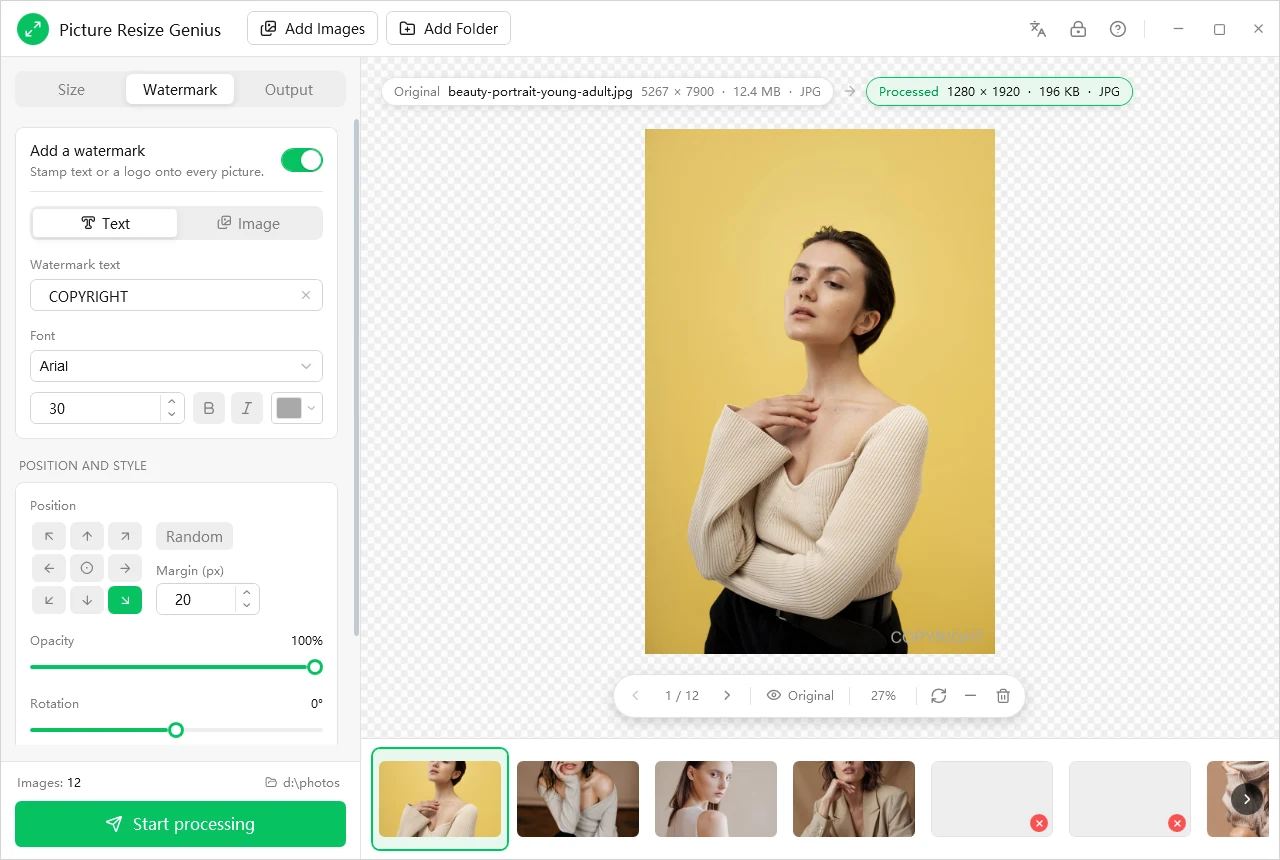
Text watermark·font, size, bold and italic, colour, opacity and rotation are all adjustable
Image watermark·use your own logo or graphic, with transparency preserved
Placement·nine-point grid or random position, with an adjustable margin
Auto-scale·the same watermark keeps the same proportions on a thumbnail and on a large photo
The watermark is part of the live preview, so you can judge the placement before you process.
Output: format, quality, folder, dates and metadata
Formats and output
Read 150+, write 60+, keep your privacy
Reads·JPG, PNG, WebP, HEIC/HEIF, AVIF, TIFF, PSD, GIF, BMP, SVG, PDF and camera RAW from Canon, Nikon, Sony, Fujifilm, Leica and others
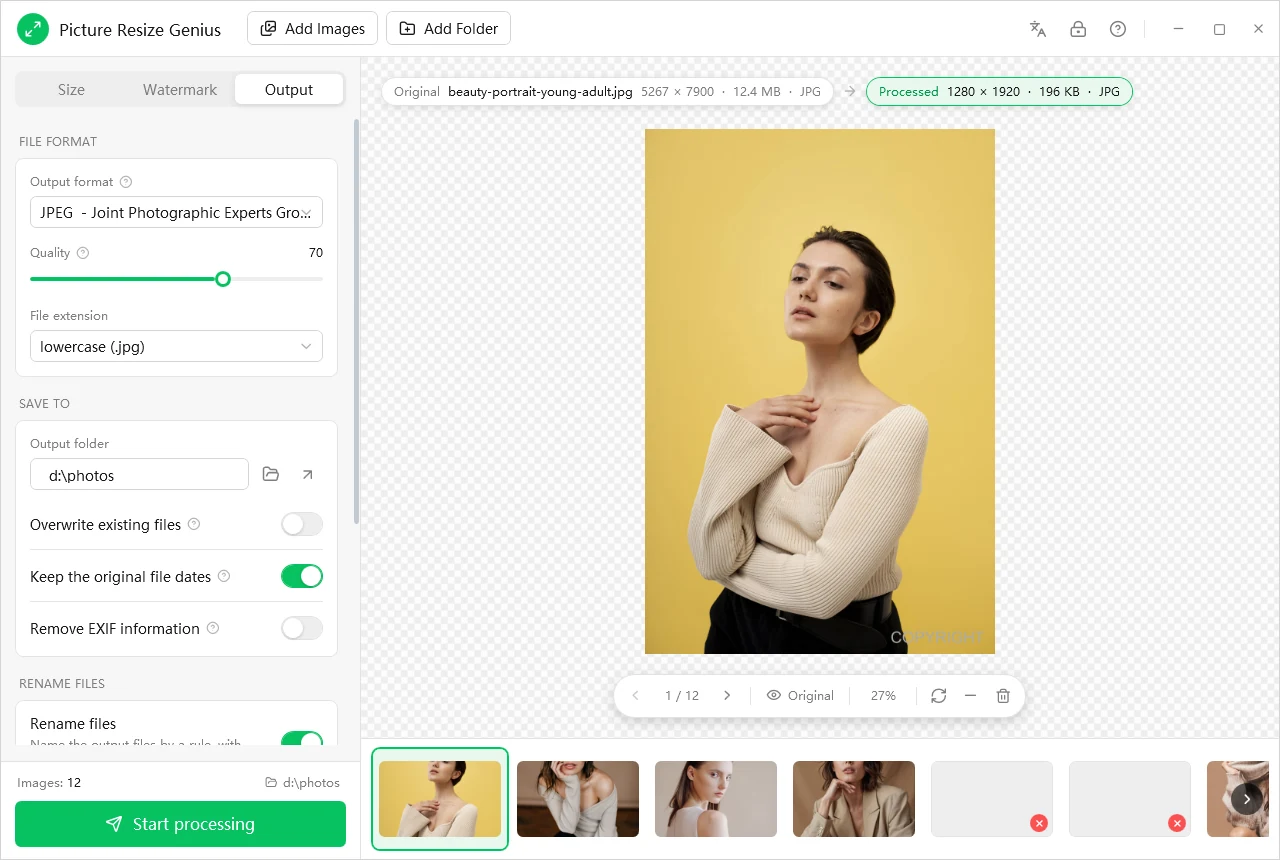
Writes·JPEG, PNG, WebP, TIFF, BMP, GIF, PSD, PDF, JPEG 2000 and more, or keep each picture in its original format
Quality·a slider for JPEG, PNG, WebP, JPEG 2000 and other formats that support it; formats that cannot be re-saved, such as RAW, export to JPEG automatically
Privacy·remove EXIF and XMP metadata in one click, including the embedded EXIF thumbnail; pictures are auto-rotated to the correct orientation on import
Safe saving·Overwrite existing files is off by default, and you can keep each file's original created and modified dates
Rename: build the name from tokens and see an example
Smart renaming
Put IMG_0001 and DSC_8842 in order
Building blocks·original file name, extension and a zero-padded serial number
Dates·the modified date and time, and the original capture date and time
EXIF fields·camera model, artist, date and time, exposure, F-number and ISO
Numbering·a custom start number and step, with extensions in lowercase or uppercase
Live example·the dialog shows how the next output file will be named
Speed, by design
Set the rules once; every later batch is drop in, click Start
A multi-threaded pipeline uses several CPU cores to process several pictures at once, Windows fast-path decoding makes thumbnails and previews load quickly, and the industry-standard ImageMagick engine gives broad format coverage and consistent results. The 64-bit edition handles larger images and larger batches; the 32-bit edition keeps older machines covered.
Compared with what you use now
An honest comparison by category, not by brand
Editing one by one
Online batch tools
Picture Resize Genius
Hundreds of images
Hours of work
Upload and wait in a queue
Set once, process in one pass
Privacy and confidential images
Local
Uploaded to a third party
Fully local processing
Preview before processing
Check each file
Usually none
Live preview with estimated size
Format coverage
Depends on the program
Mostly common formats
Reads 150+, writes 60+
Originals
Easy to overwrite by mistake
Not applicable
Source images are never overwritten
Resize, watermark, rename
Separate programs
Scattered features
One window, one pass
Metadata cleanup
An extra tool
Depends on the service
One click, including embedded thumbnails
Use cases
Who uses it, and for what
Photographers
Turn a full RAW shoot into deliverable JPGs: consistent size, copyright watermark and sequential names, all in one run.
Online sellers and e-commerce
Normalise product photos to the exact size and format a marketplace requires, for example 800 x 800, and stop editing one by one.
Web and app developers
Batch-generate correctly sized, compressed assets with predictable file names that code can reference.
Social media and content creators
Brand every image with a logo or text watermark before posting, in one consistent style.
Offices and archiving
Convert mixed legacy and RAW files into tidy, space-efficient ones, with metadata stripped before distribution.
Design and publishing
Output separate versions at different DPI and sizes for print and web.
Specifications
Operating system
Windows 10 or later, with a 64-bit (x64) and a 32-bit (x86) installer
Runtime
Microsoft .NET Framework 4.5.2 or later (the installer checks for it and guides you if it is missing)
Resize
By pixels or percentage; fit, crop and fill; nine-point anchors; only shrink; DPI
Input formats
More than 150, including JPG, PNG, WebP, HEIC/HEIF, AVIF, TIFF, PSD, GIF, BMP, SVG, PDF and camera RAW
Output formats
More than 60, including JPEG, PNG, WebP, TIFF, BMP, GIF, PSD, PDF and JPEG 2000, or the original format
Watermark
Text or image, nine-point or random position, margin, opacity, rotation, auto-scaling
Renaming
Tokens for file name, extension, serial number, dates and EXIF fields; custom start and step
Privacy
Remove EXIF and XMP metadata and the embedded thumbnail; auto-rotation on import
Interface languages
English, Chinese (Simplified), French and Spanish; picks the system language on first run
Engine
ImageMagick, multi-threaded
Trial and registration
Try it free for 15 days, then activate if it fits
The full feature set is available during the trial, and you do not need an account to try it.
During the trial
The full feature set for 15 days
No account needed to try it
Activated
The trial limit is lifted immediately
Keep processing images after the 15 days
How to activate
Click the lock icon (Activate) at the top right of the window
Enter your name, e-mail address and registration code from your order e-mail
Click Activate. The program needs an internet connection once.
No. Output is always written as new files, and the program never overwrites a source image, even with Overwrite existing files turned on. Name collisions get an automatic (1), (2) suffix, so nothing is clobbered.
Are my pictures uploaded anywhere?
No. All processing happens on your computer: no uploads, no cloud queue and no account needed to get work done. The internet is used only to activate a license.
Can it handle my camera's RAW files?
Yes. It reads RAW files from Canon, Nikon, Sony, Fujifilm, Leica and other makers (CR2, CR3, NEF, ARW, DNG, ORF, RW2, RAF, PEF, X3F and more). RAW cannot be re-saved as RAW, so exports are converted to JPEG automatically, or saved in whichever output format you choose.
My resized picture did not get bigger.
Only shrink, never enlarge is on by default, so pictures that are already smaller than the target stay as they are and never turn blurry. Turn it off in the Size tab if you want upscaling.
Can I see the result before I process the batch?
Yes. The preview runs the full pipeline (resize, watermark, output format and quality) and shows the before and after dimensions, format and estimated file size. Toggle between Original and Processed to compare the same detail, page through the photos and remove any picture you do not want in the batch.
Which formats can it read and write?
It reads more than 150 formats, including JPG, PNG, WebP, HEIC/HEIF, AVIF, TIFF, PSD, GIF, BMP, SVG, PDF and camera RAW, and writes more than 60, such as JPEG, PNG, WebP, TIFF, BMP, GIF, PSD, PDF and JPEG 2000. You can also keep each picture in its original format.
Pictures from my cloud drive show an error.
If the files are online-only, they have not been downloaded to your PC yet. Make them available offline, or copy them to a local folder, and add them again.
Does it remove GPS location and camera details?
Yes, with Remove EXIF information it strips EXIF and XMP metadata (camera details, GPS location and timestamps) in one go. When you keep the metadata, the embedded EXIF thumbnail is removed so that a cropped or watermarked picture cannot leak the original through it.
Which edition do I install, 64-bit or 32-bit?
Install the 64-bit edition on 64-bit Windows: it handles larger images and larger batches. The 32-bit edition keeps older machines covered. Both have the same features, and it needs Windows 10 or later with .NET Framework 4.5.2 or later.
What are the limits of the trial?
The trial lasts 15 days with the full feature set and needs no account. After it ends you need to activate to keep processing images; the limit is lifted as soon as you do.
Need help? Get in touch
If something does not work, or you have a suggestion, send us a message or an email.
Normalise hundreds of pictures to 800 x 800, 1920 pixels wide or an email-friendly size: choose the size, fit mode and quality, check the estimated file size in the live preview, rename the files and press Start. Originals stay untouched.
Set your rules once and process the whole folder: pixels or percentage, 150+ input formats including RAW and HEIC, 60+ output formats, text and logo watermarks, smart renaming and one-click metadata removal, with a live preview of the real result.