Activation guide

Activate your license

Enter your name, e-mail address and license key in the program. It takes about a minute and needs an internet connection once.

Three steps

Activating with your license key

Your license key arrives by e-mail after checkout, usually within a few minutes. Every program activates the same way.

  1. 1

    Find your license key

    After checkout the store e-mails you the license key. Select it in the e-mail and copy it, so that you can paste it instead of typing. Cannot find the e-mail? Look in the spam folder, or look up your key in the store.

  2. 2

    Open the activation window

    The window is in a different place in each program: see where to find it below.

  3. 3

    Enter your details and activate

    Type your name and the e-mail address you ordered with, paste the license key and press Activate. The program checks the key with our license server and saves your license on this PC. Video Snapshots Genius restarts itself to apply it.

Saved on your PC

The signed license is saved in your Windows user profile and is verified on the PC itself.

Online once

The internet is only used for this activation step. Your videos, photos and schedules are never uploaded.

One license, one computer

Enter the key on the computer you want to license. One license covers one computer; Auto Shutdown Genius covers two.

Step 2 in detail

Where to find the activation window

Video Snapshots Genius

  1. 1 Click the Settings button (slider icon) at the top right of the main window and open the License page. A red dot on the icon means the copy is not activated yet. The reminder shown at startup also has an Already purchased? Enter your license key link that opens the same page.
  2. 2 Fill in Name, Email and License key. The Activate button works once all three are filled in.
  3. 3 Press Activate. The program says it has been activated and restarts by itself.

Each program has its own keys: a key for another product does not activate Video Snapshots Genius. Afterwards the License page shows your name, e-mail, key and version.
Picture Resize Genius

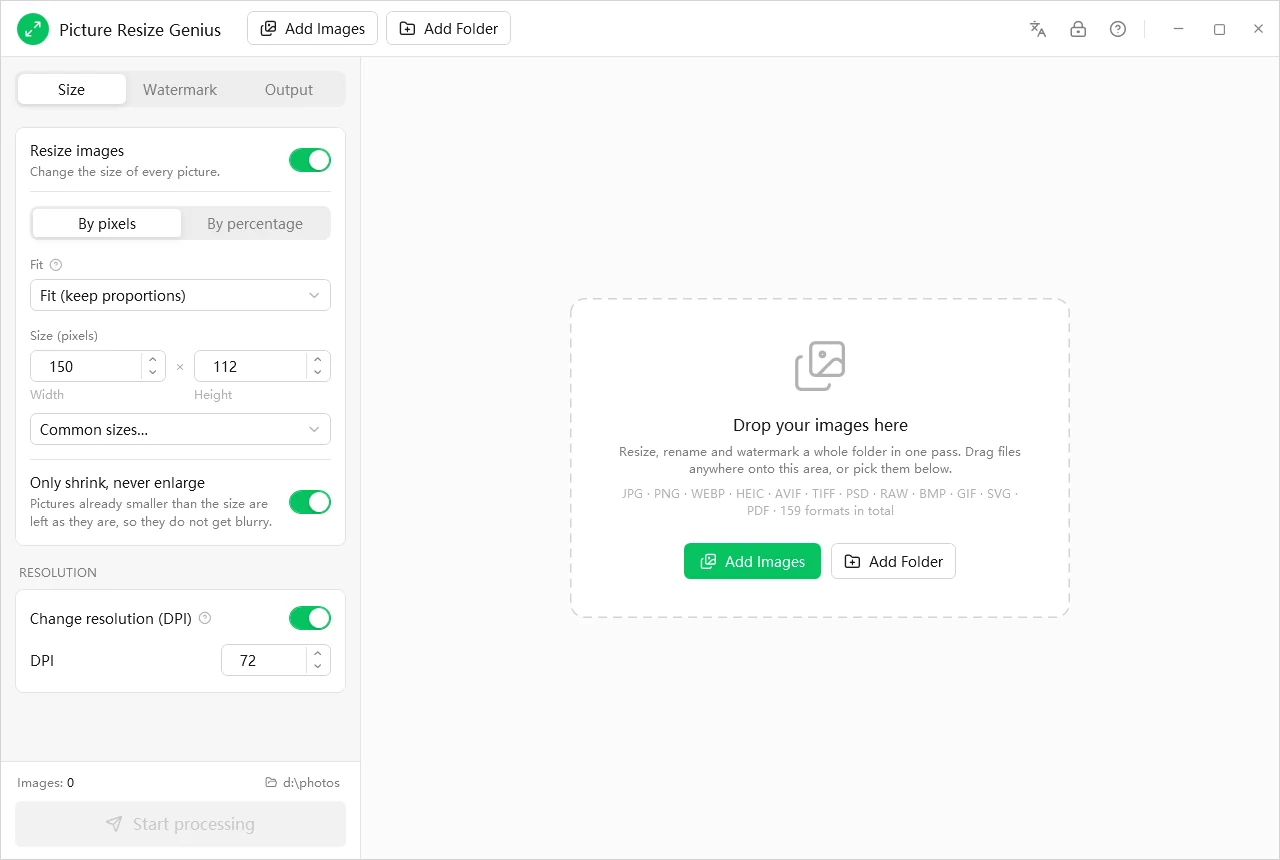
  1. 1 Click the lock icon (Activate) in the top-right corner of the main window, next to the Language and Help buttons.
  2. 2 Enter your name, e-mail address and the license key.
  3. 3 Press Activate. The trial limit is lifted at once.

The interface can be switched between English, Chinese, French and Spanish with the Language button.

Picture Resize Genius main window with the Language, Activate and Help buttons at the top right
Picture Resize Genius: the lock icon at the top right opens activation

Auto Shutdown Genius

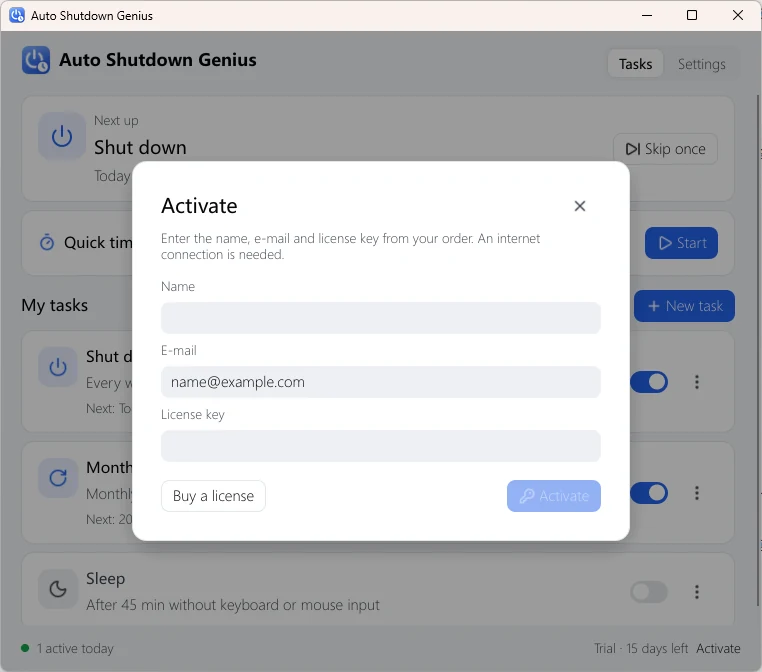
  1. 1 Click Activate in the status bar at the bottom of the main window. The same button is on the Settings page and in the reminder that appears from the 10th day of the trial.
  2. 2 Enter Name, E-mail and License key exactly as shown in your order.
  3. 3 Press Activate.

One license key can be activated on two computers, and the license is perpetual.

Auto Shutdown Genius activation window with Name, E-mail and License key fields
Auto Shutdown Genius: the activation window

Before you activate

The 15-day trial

You do not need to activate to try a program. The trial starts the first time you run it and lasts 15 days. This is what changes when it ends.

Program During the trial Without a license
Video Snapshots Genius 15 days, every feature You can still open the program, add videos, browse existing snapshots and change settings. Capturing, Pick frames and every save or copy are blocked until you activate.
Picture Resize Genius 15 days, every feature Processing images needs an activated license. The limit is lifted as soon as you activate.
Auto Shutdown Genius 15 days, every feature Scheduled tasks stop running until you activate; nothing is deleted. A reminder appears at startup from the 10th day.

No key needed to try: install the program and use it for 15 days with every feature; you only need a key after that.

If something goes wrong

Troubleshooting

The program says the key is not valid.

Copy the key from the e-mail and paste it instead of typing it, and make sure there is no space before or after it. Enter the name and e-mail address exactly as you gave them when you ordered. Each program has its own keys, so check that the key belongs to this product. A key that was just paid for can take a few minutes to appear in the license database; wait a little and try again.

Activation says it cannot connect.

Activation needs an internet connection once. The program contacts our license server over HTTPS, so a firewall, proxy or security program must let it through. Try again on another network if you can. After activation the program does not need the internet to check your license.

I reinstalled Windows or bought a new computer.

Install the program and enter your license key again. One license covers one computer (two for Auto Shutdown Genius); to run the program on more computers you need more licenses. If activation reports that no activations are left, write to us and we will reset it.

I lost my license key.

The license lookup in our store shows the keys for the e-mail address you ordered with. You can also track an order there.

Still stuck?

Write to us with the program name, the e-mail address you ordered with and, if you have it, the order number. More answers are in the FAQ.