How to Shut Down Your PC After a Download or Render Finishes, Without Guessing the Time
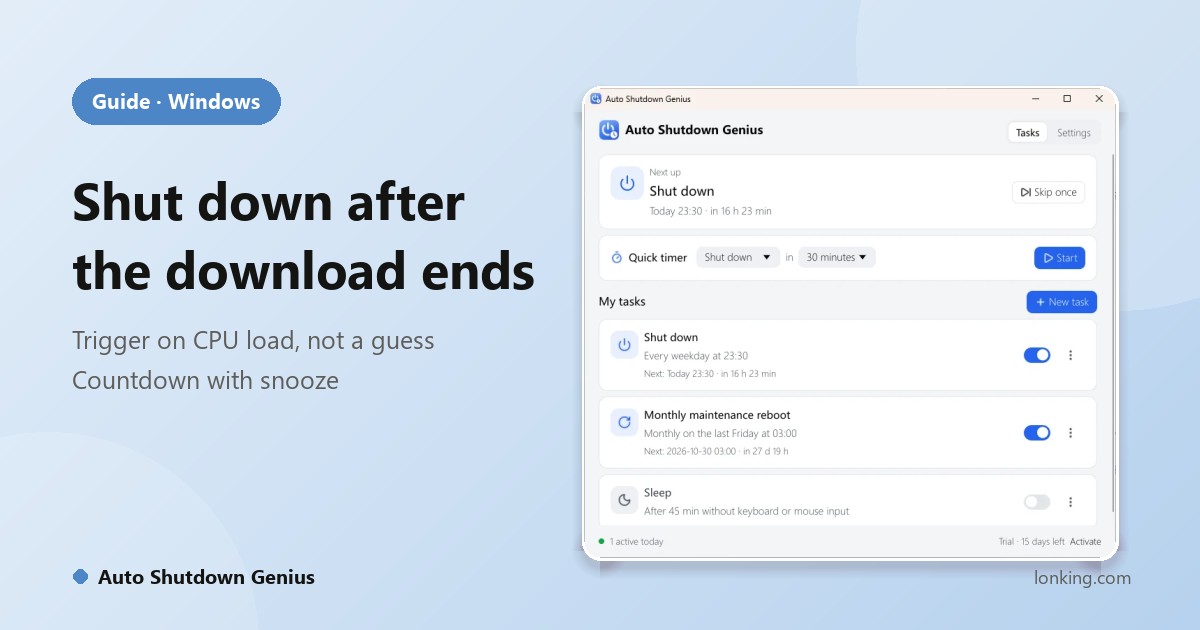
A download that finishes at 2 a.m., a render that ends before dinner, a backup that takes “a couple of hours”. You do not know when the job will finish, so any fixed shutdown time is a guess: too early and the job is cut off, too late and the PC runs for hours for nothing. The fix is to tell the PC what finished looks like.
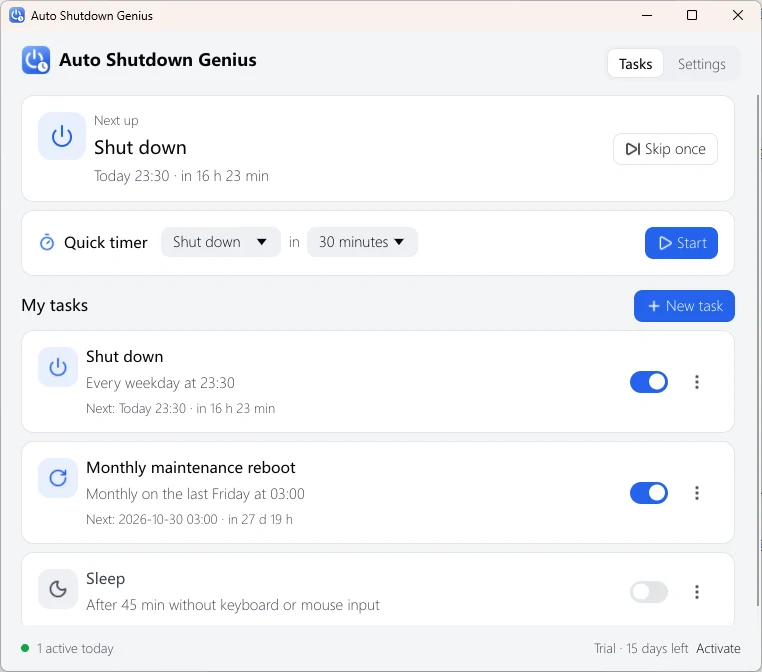
The idea: shut down when the CPU goes quiet
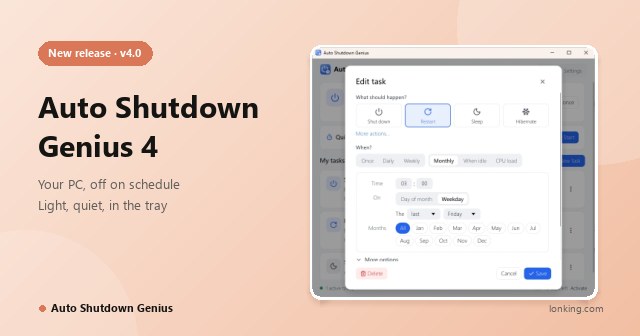
While a download, render or backup runs, the processor is busy. When it stops, CPU usage drops. Auto Shutdown Genius has a CPU load trigger for exactly this: it runs a task when CPU usage stays below (or above) a level you choose for a number of minutes. For example: when CPU stays below 10% for 5 minutes, shut down. The PC leaves when the work is done, not a minute earlier or hours later.
Set it up in a minute
- Open Auto Shutdown Genius and click New task.
- Under What should happen?, choose Shut down (or Sleep or Hibernate if you prefer).
- Under When?, click More... and choose CPU load.
- Choose below, set the percentage (10% is a good start) and the number of minutes (5), and watch the current CPU usage shown for reference while you decide.
- Check the blue summary line at the bottom of the editor, then click Save.
A second option: when the PC is idle
The When idle trigger runs a task after N minutes without keyboard or mouse input. It suits a PC you simply forgot about (“hibernate after 30 minutes of no input”), but some programs, such as video players and remote-desktop tools, keep Windows from ever becoming idle. For a long job, the CPU trigger is the more reliable choice.
A safety net you control
Shutting down closes every program, so the countdown matters. Before the task runs, a window appears on top of everything else:
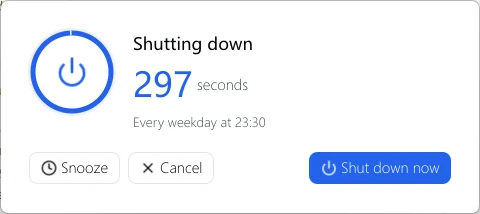
If the job turns out to need more time, Snooze the action or Cancel this run; the task will run again the next time its condition is met. You can also Skip once from the main window, or pause every task from the tray icon during a long overnight job. Open History afterwards to see what ran and when.
Shutting down when nobody is signed in
If the download is run by a service or you sign out before it ends, install the optional Background service in Settings, Advanced. It needs one administrator prompt, and then tasks run even when no one is signed in to Windows.