How to Schedule Shutdown on Windows 11 and 10: 4 Ways to Set a Shutdown Timer
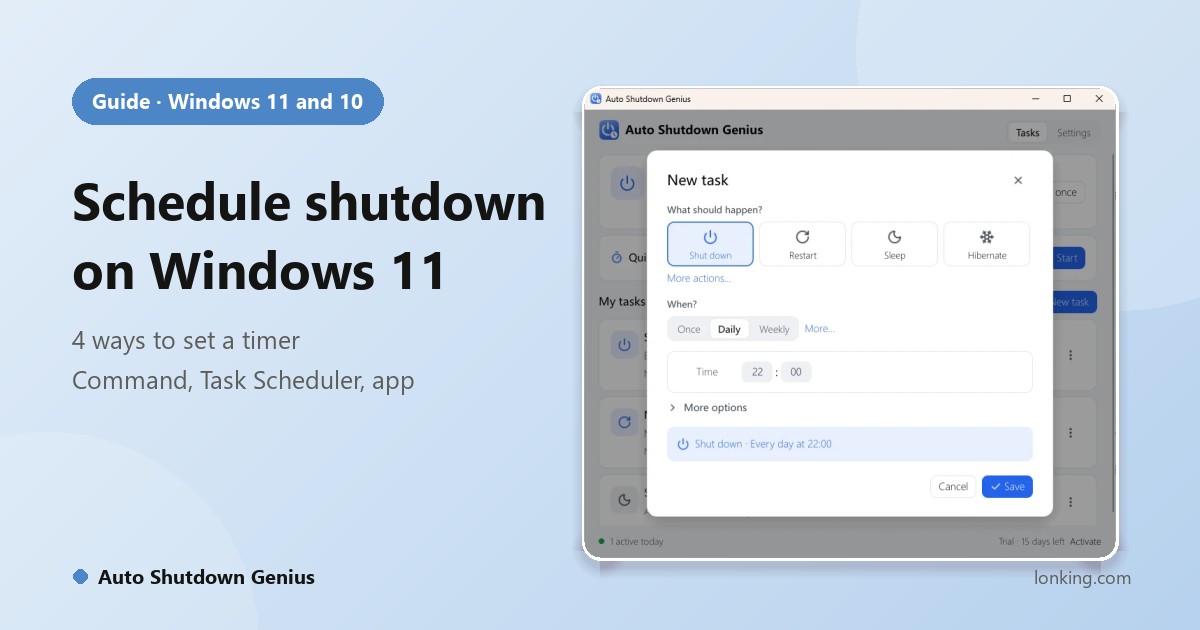
Windows can turn itself off on a schedule, but it hides the controls. There is no “shut down at 11 p.m.” switch in Settings. Below are four ways to set a shutdown timer on Windows 11 and Windows 10, from a one-line command to a proper scheduler, with what each one can and cannot do.
Way 1: the shutdown command (one-off timer)
The quickest timer is a single command. Press Win + R, type the command below and press Enter:
shutdown /s /t 3600/s means shut down and /t is the delay in seconds, so 3600 is one hour (1800 is 30 minutes, 7200 is two hours). Windows shows a notification that the shutdown is scheduled. To cancel it, run:
shutdown /aUse /r instead of /s to restart. Add /f to force programs to close; unsaved work in those programs is lost. If you use this often, right-click the desktop, choose New, Shortcut and paste the command as the location, so you can double-click it.
Limit: it runs once. Tomorrow night you type it again.
Way 2: Task Scheduler (repeating shutdown)
Task Scheduler is built into Windows and handles daily and weekly schedules.
- Press Win + R, type
taskschd.mscand press Enter. - In the right-hand pane click Create Basic Task and give it a name such as “Nightly shutdown”.
- Choose a trigger (Daily or Weekly) and set the time.
- Choose Start a program. In Program/script type
shutdownand in Add arguments type/s /t 60. The 60-second delay gives you a minute to react. - Finish the wizard. To change it later, find the task in the Task Scheduler Library and open its properties.
Limit: there is no countdown window you can snooze, no way to skip a single night except by disabling the task, and nothing that reacts to what the PC is doing.
Way 3: Windows settings for sleep and display (no shutdown)
If sleeping is good enough, open Settings, System, Power (on Windows 10: Power & sleep) and set Screen and sleep to put the PC to sleep after a period of inactivity. This saves power with no scripting, but it only sleeps; it does not shut down, and it cannot run at a fixed time of day.
Way 4: Auto Shutdown Genius (schedules, idle and CPU triggers)
If you want repeating schedules without typing commands, Auto Shutdown Genius puts them in a window that shows what runs next.
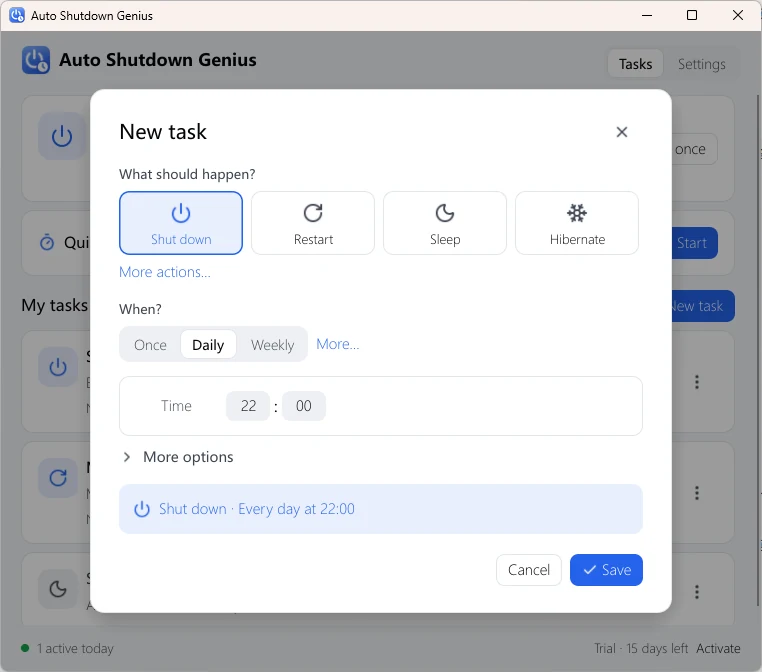
- Eight actions: shut down, restart, sleep, hibernate, sign out, lock, turn off the display, start the screen saver.
- Six ways to say when: once, daily, weekly, monthly (including “the last Friday”), when the PC is idle, or when CPU load drops.
- Quick timer: “shut down in 30 minutes” in two clicks.
- Countdown with snooze and cancel before anything runs, plus skip-once and pause-all.
The CPU trigger solves the problem the other methods cannot: you do not know how long a download or render will take. Tell the PC what finished looks like (for example, CPU below 10% for 5 minutes) and it shuts down then. We walk through it in shutting down after a download finishes.
Which one should you use?
| You want… | Use |
|---|---|
| Shut down once, in an hour or so | The shutdown /s /t command |
| The same shutdown every night, no extra software | Task Scheduler |
| Only to save power when you walk away | Windows sleep settings |
| Schedules plus a countdown, idle or CPU-based triggers, skip and history | Auto Shutdown Genius |
Common problems
- Hibernate does nothing: hibernation may be turned off. In an administrator Command Prompt run
powercfg /hibernate on. - Windows says a program is preventing shutdown: save your work, or use
/f(command and Task Scheduler) or Auto Shutdown Genius’s Force apps to close option, knowing unsaved work in those programs is lost. - The task did not run: in Task Scheduler check the task is enabled and look at its History tab; a laptop asleep at the trigger time will not shut down on schedule unless the task is set to wake the computer.