1. Installing and starting
About 5 MB, and in the tray within a minute
- You need 64-bit Windows 10 or Windows 11. Windows 7 and 8 are not supported. The internet is needed only to activate a license, and installing the optional background service needs administrator rights.
- Run
AutoShutdownGenius-4.0.0-Setup.exeand follow the wizard. When it finishes the program starts and puts an icon in the notification area (system tray) next to the clock. - Tasks run only while the program is running, so keep Start with Windows on. It is on from the first run.
| Tray icon | Result |
|---|---|
| Left-click | Opens the main window. |
| Right-click | Menu: Open Auto Shutdown Genius, Pause all tasks, Exit. |
| Hover | Shows how many tasks are active today. |
The icon turns grey when all tasks are paused or nothing is scheduled. Closing the main window does not stop the program; to stop it completely, right-click the tray icon and choose Exit.
2. The main window
The Tasks page
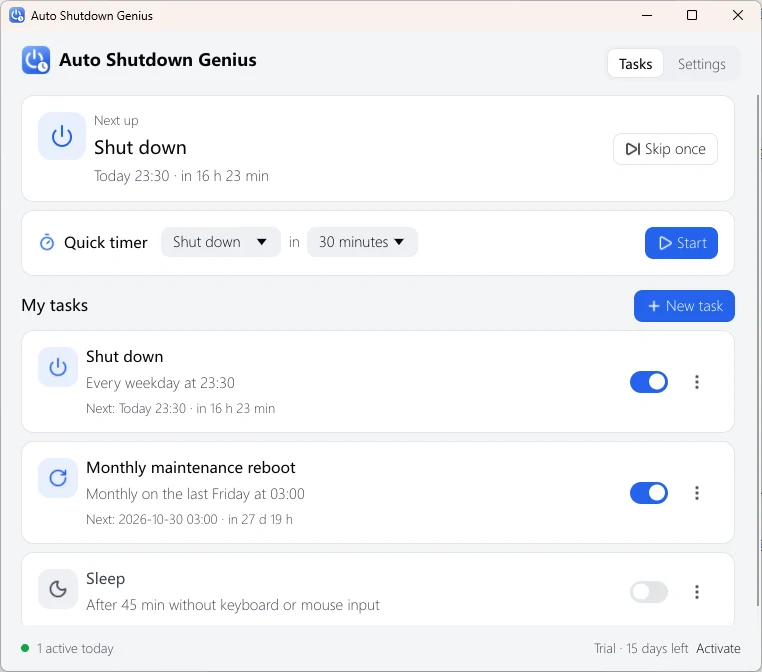
Next up
The next task to run and how long until it runs. Click Skip once to skip that run; the task still runs as usual after that.
Quick timer
A one-off timer you can start in two clicks (section 3).
My tasks
Your scheduled tasks. Each card shows the action, the schedule and the next run time, with a switch to turn it on or off.
Status bar
Shows how many tasks are active today and your license status. Click Activate to enter a license key.
Switch to the Settings page with the buttons in the top-right corner.
3. Quick timer
For one-off jobs such as “shut down in 30 minutes”
- Choose an action, for example Shut down.
- Choose a delay: 15 minutes, 30 minutes, 1 hour, 90 minutes, 2 hours or 3 hours, or Custom... for any number of minutes.
- Click Start.
The timer appears under Next up, where you can Cancel it. Only one quick timer runs at a time: starting a new one replaces the old one. A quick timer is deleted automatically after it runs.
4. Creating a task
Click New task
What should happen?
The four most common actions come first: Shut down, Restart, Sleep and Hibernate. More actions... adds Sign out, Lock, Turn off display and Screensaver. Hibernate works only if hibernation is enabled in Windows.
When?
Once, Daily and Weekly come first; More... adds Monthly, When idle and CPU load.
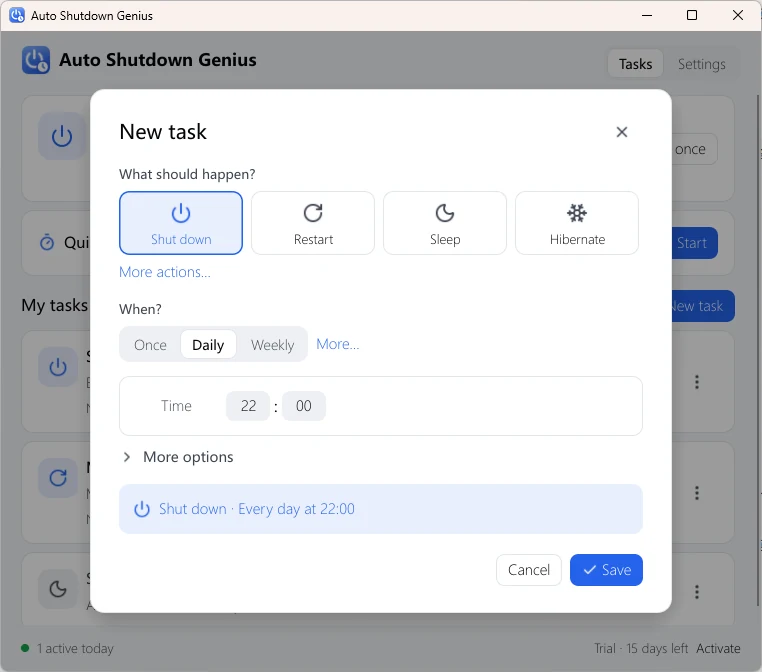
| Schedule | Options |
|---|---|
| Once | A date and a time. The time must be in the future. |
| Daily | A time. |
| Weekly | A time and the days of the week. Use the Weekdays, Weekend and Every day shortcuts, or pick days one by one. |
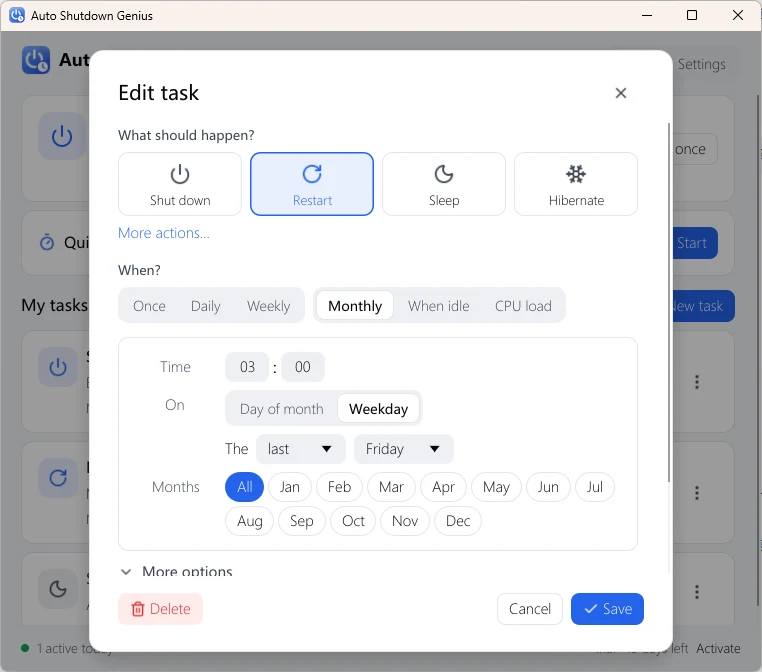
| Monthly | A time, then either Day of month (for example day 31; in shorter months the task runs on the last day) or Weekday (for example the last Friday). Pick the months it runs in, or All. |
| When idle | Runs after the computer has had no keyboard or mouse input for the number of minutes you set. |
| CPU load | Runs when CPU usage stays below or above a percentage for the number of minutes you set; the current CPU usage is shown for reference. Useful for shutting down after a long download, render or backup finishes. |
More options
Expand More options to give the task a Name (otherwise the action name is used) and, for Daily and Weekly schedules, to set Repeat every N days or weeks and a Starting date, for example every 2 weeks starting next Monday.
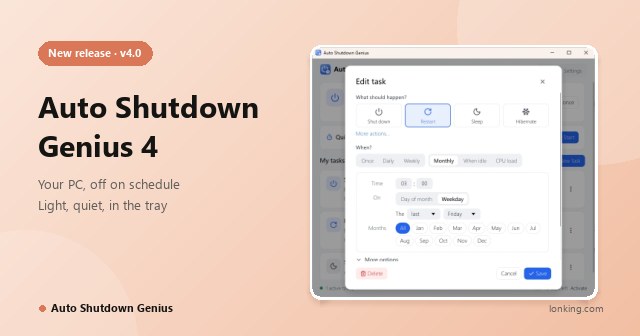
The blue line at the bottom of the editor sums up the task in plain words. Check it, then click Save. The example on the right is a restart at 03:00 on the last Friday of every month.
5. Managing tasks
The menu button on each task card
| Edit | Opens the task in the editor. |
| Skip next time | Skips the next run only. Choose Don’t skip to undo. |
| Duplicate | Makes a copy you can change. |
| On / off | Same as the switch on the card. |
| Delete | Removes the task. |
To stop every task for a while, for example during a long overnight job, right-click the tray icon and choose Pause all tasks. The main window then shows All tasks are paused with a Resume button.
6. The countdown warning
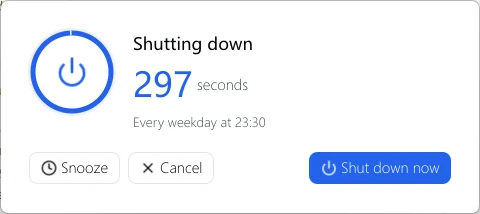
With Warn me before it runs on, a window appears before each task
- Snooze delays the action by 5, 10, 30 or 60 minutes.
- Cancel skips this run; the task runs again at its next scheduled time.
- Shut down now (or Restart now and so on) runs the action at once.
- If you do nothing, the action runs when the countdown reaches zero. The window can be dragged anywhere on the screen.
Save your work
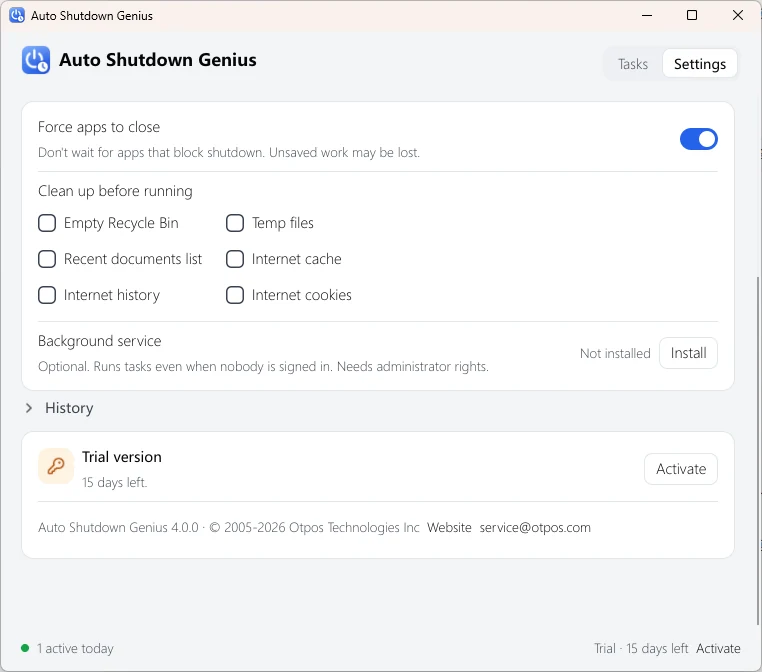
Shutting down, restarting and signing out close all programs. When Force apps to close is on, programs that ask you to save changes are closed anyway and unsaved work is lost.
7. Settings
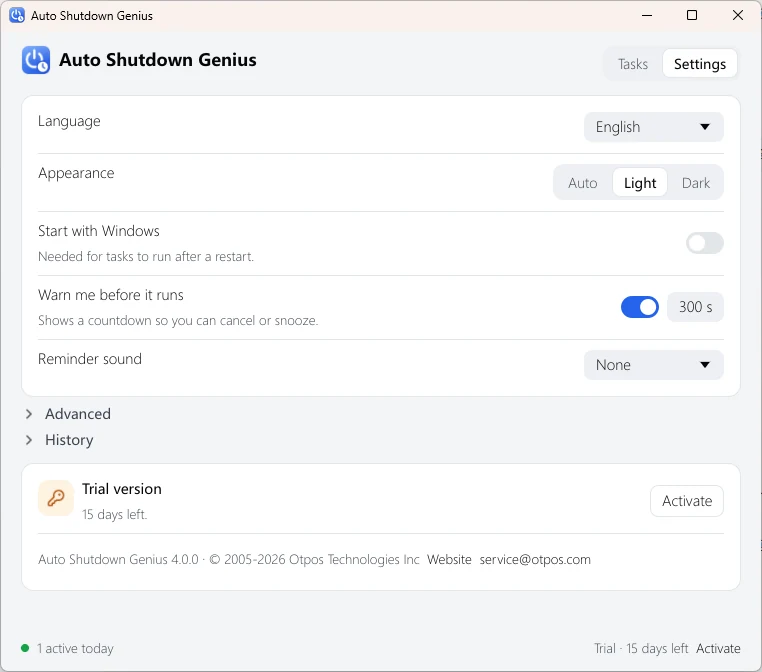
Everyday options, and Advanced for the rest
| Language | System, English or Simplified Chinese. |
| Appearance | Auto follows the Windows light or dark setting; or choose Light or Dark. |
| Start with Windows | Starts the program when you sign in. Keep it on, or tasks do not run after a restart. |
| Warn me before it runs | Shows the countdown; the number sets its length in seconds (5 to 600). |
| Reminder sound | A built-in sound, Choose file... for your own .wav file, or None. |
Advanced
| Force apps to close | Does not wait for programs that block shutdown, restart or sign-out. Unsaved work in those programs may be lost. |
| Clean up before running | Before a shutdown, restart or sign-out, deletes the items you select: Recycle Bin, Temp files, Recent documents list, Internet cache, Internet history and Internet cookies. The deleted data cannot be recovered. |
| Background service | Optional. Lets tasks run when nobody is signed in to Windows. Click Install and confirm the administrator prompt; Remove uninstalls it. |
The bottom of the Settings page shows your license status, the version number and links to the website and support e-mail.
8. History
Settings page, History
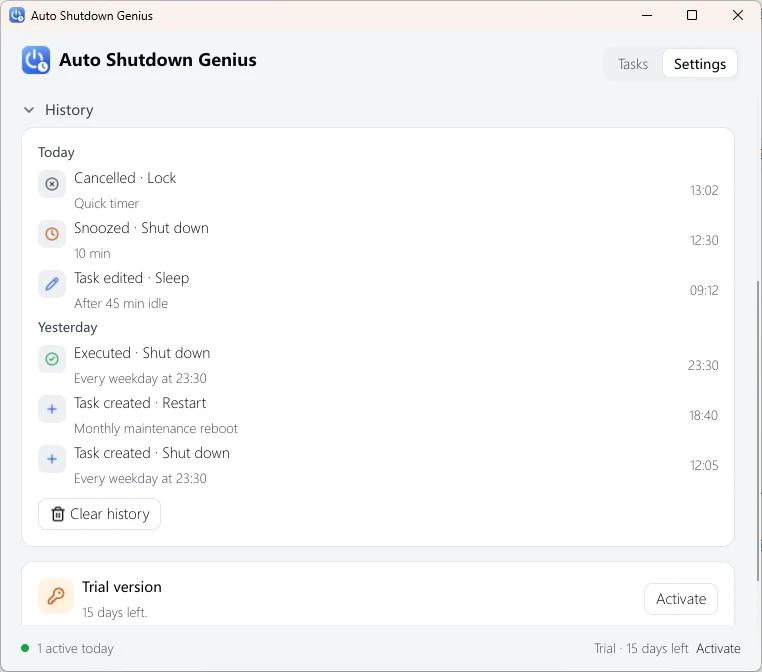
History lists what the program has done: tasks that ran, were cancelled or snoozed, tasks you created, edited or deleted, clean-ups and errors, grouped by day. The newest 10,000 entries are kept and older ones are removed automatically. Clear history deletes all entries.
9. Trial and activation
15 days, every feature unlocked
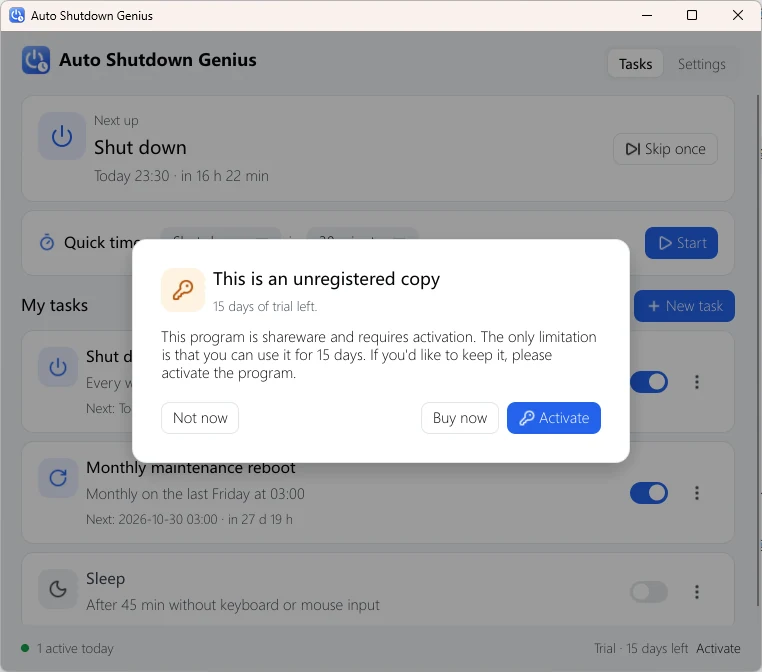
You can use every feature free for 15 days from the first time the program runs. From the 10th day a reminder appears each time the program starts, with Not now, Buy now and Activate.
When the trial ends, scheduled tasks stop running until the program is activated. You can still open the program and change settings; nothing is deleted.
To activate
- Buy a license from the website. The license key arrives by e-mail.
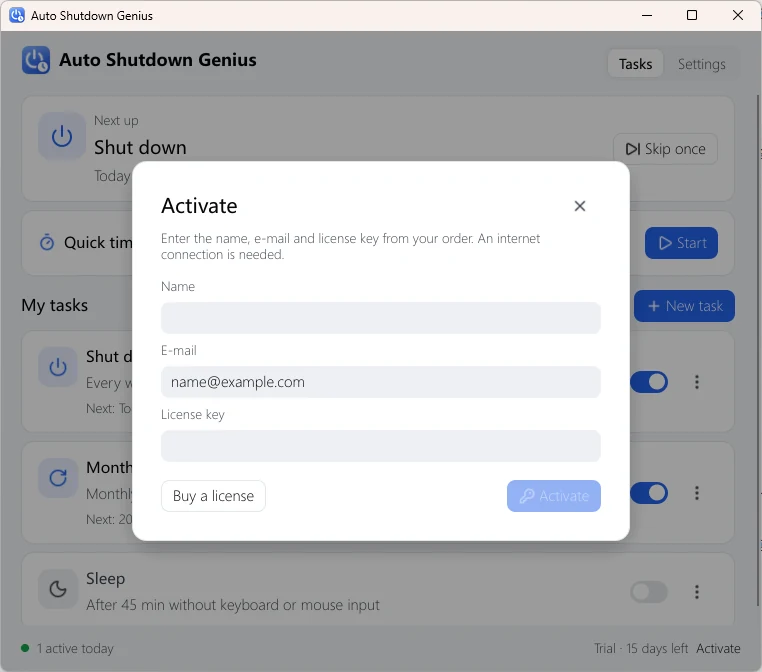
- Click Activate (status bar, Settings page or the reminder).
- Enter the Name, E-mail and License key from your order exactly as shown, and click Activate.
Activation needs an internet connection; your name, e-mail address and key are sent to the activation server only to verify your license. Each key can be activated on two computers and the license is perpetual.
More in the activation guide.
10. Troubleshooting
Quick answers to common problems
A task did not run.
Check that the program is running (its icon is in the notification area; you may need to click the arrow to see it) and that Start with Windows is on. Check that the task's switch is on, that it is not set to Skip next time and that tasks are not paused. If the trial has ended the status bar shows Trial ended: activate the program. Open History to see whether the task was cancelled, snoozed or failed.
The computer did not shut down; a program asked me to save.
Turn on Force apps to close in Settings, Advanced. Save your work first: unsaved changes in those programs are lost.
Hibernate does nothing.
Hibernation may be switched off in Windows. Open a Command Prompt as administrator and run powercfg /hibernate on.
The When idle trigger never fires.
Some programs, such as video players and remote-desktop tools, keep the computer from becoming idle. Use a time-based task or a CPU load task instead.
Tasks must run when nobody is signed in.
Install the Background service in Settings, Advanced. It needs an administrator prompt. The service runs under the Windows SYSTEM account and uses the data folder of the user who installed it, so if another Windows user should manage the tasks, that user must click Install again.
Activation fails.
Check your internet connection, and make sure the name, e-mail address and license key match your order exactly; copy and paste them to avoid typing mistakes. If it still fails, e-mail us your order details.
Where is my data stored, and how do I back it up?
In %LOCALAPPDATA%\Auto Shutdown Genius: tasks.json (your tasks), settings.json (your settings), license.json (activation data) and history.redb (history). To back up your tasks, copy tasks.json and settings.json. Uninstalling the program does not delete this folder, and data from versions before 4.0 is copied over automatically the first time you start this version.
Can I run one license on two computers?
Yes. Each license key can be activated on two computers, and the license is perpetual. If you replace a computer or reinstall Windows and activation fails, contact us.
Did not find your answer? Email service@iotcrazy.com or use the contact form.