How to Extract Frames from a Video on Windows: One Frame or Hundreds
You need still images from a video: thumbnails, training data, storyboard frames, a screenshot for a tutorial. Taking them one by one is slow, and a screen grab gives you the wrong resolution. This guide covers three ways to extract frames from a video on Windows 10 and 11, from a single frame to hundreds in a batch.
One frame: VLC or a screenshot
For a single image, pause the video in VLC and use Video, Take Snapshot (Shift + S on Windows). The picture is saved at the video’s resolution. A Win + Print Screen screenshot also works, but it captures your screen at the screen’s resolution, window borders and player controls included, so it is the last resort. Neither method scales to a whole video.
Many frames: free command-line tools
FFmpeg, a free command-line tool, can write one image per second:
ffmpeg -i input.mp4 -vf fps=1 frame_%04d.jpgChange fps=1 to fps=1/10 for one frame every ten seconds. It is powerful, but you type commands, you do not see what you are getting, and black frames from fades and transitions end up in the output.
Batches with Video Snapshots Genius
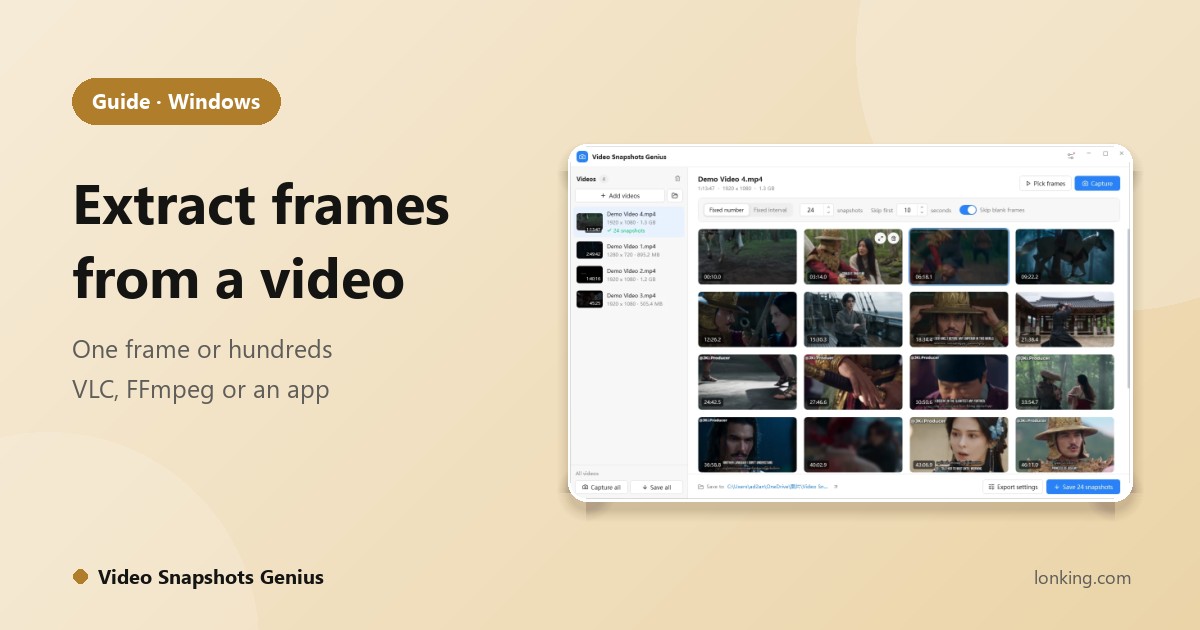
Video Snapshots Genius does the same job in a window, for one video or a whole folder.
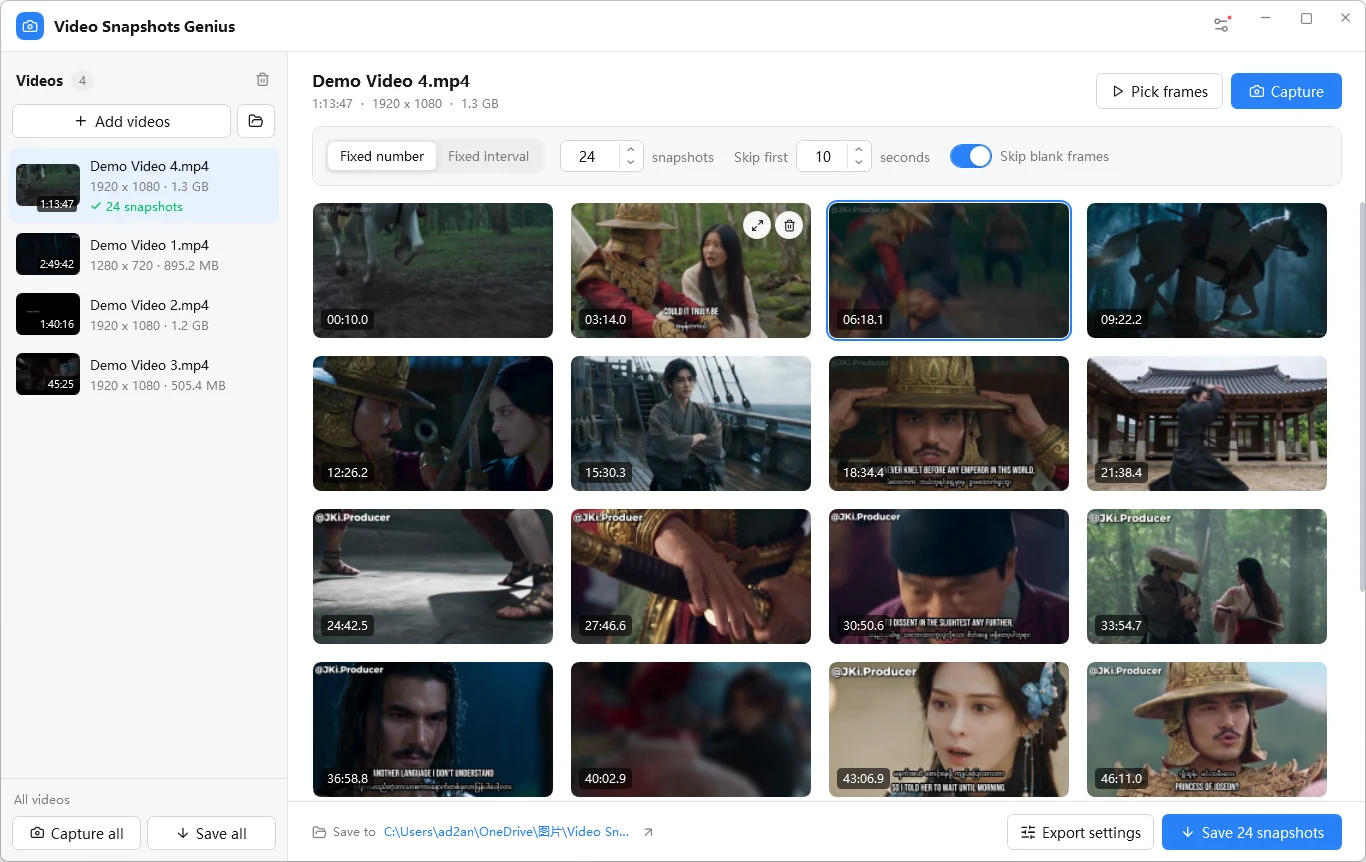
- Add videos. Drag in files or a folder. It reads 25+ container formats (MP4, MKV, MOV, AVI, WMV, WEBM and more) with H.264, H.265, VP9 and AV1 decoding built in, so no codec packs are needed.
- Choose how to capture. Fixed number gives you, say, 24 evenly spaced snapshots whatever the video’s length. Fixed interval gives one every N seconds.
- Skip blank frames. With Skip blank frames on (the default) near-solid black, white and single-colour frames are dropped, and in Fixed number mode a usable frame nearby takes their place.
- Pick the exact moment when it matters. Pick frames opens a player: Space plays or pauses, the arrow keys step one frame, and C captures.
- Save. Each video gets its own folder with numbered JPG, PNG or BMP files, resized or watermarked if you chose. An animated GIF and a contact sheet can be created at the same time.
Snapshots are decoded from the file at the original resolution, with the correct aspect ratio and orientation, so a portrait phone video comes out upright. More detail in capturing frames without black screens.
Which method?
| Need | Best fit |
|---|---|
| One frame, right now | VLC Take Snapshot |
| Regular frames and you are comfortable with the command line | FFmpeg |
| Many videos, no black frames, preview, GIF or contact sheet | Video Snapshots Genius |